Relaxing
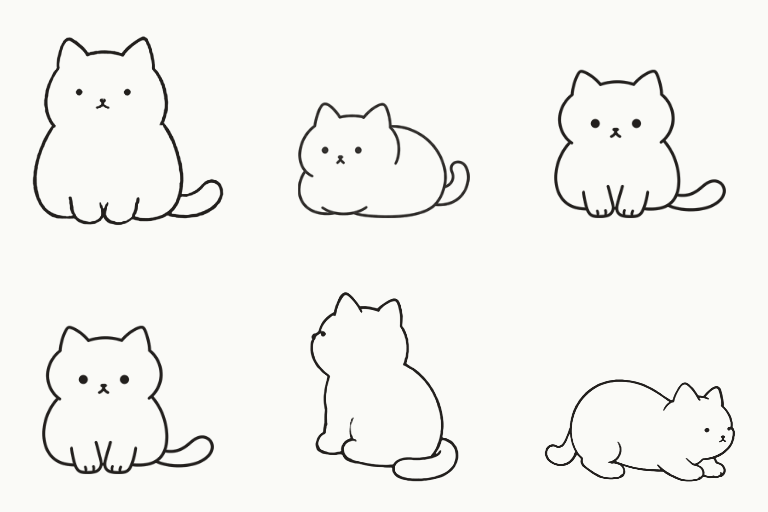
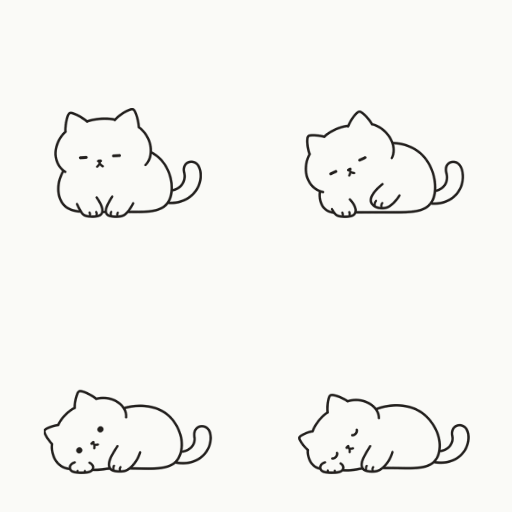
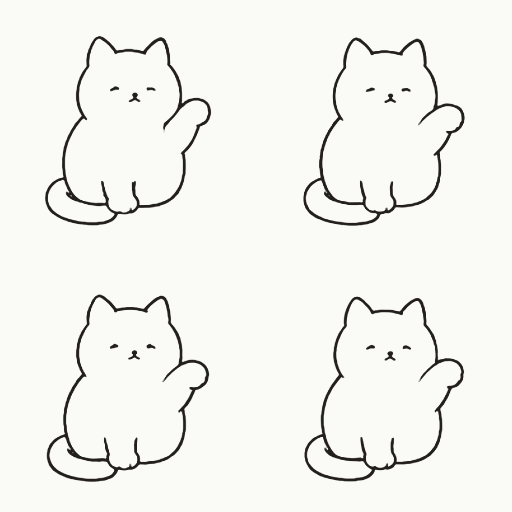
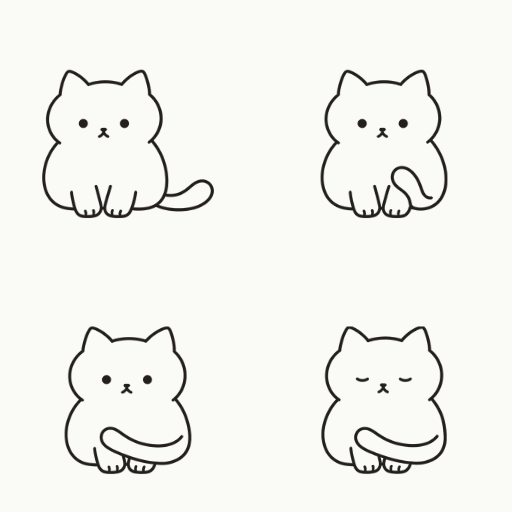
When nothing is happening, your cat takes a relaxed little break.
NekoLife · Dog Life (InuLife) · Giant Isopod Life
Animated stickers that live on your avatar's clothing or skin.Choose Free Cat (English) or a paid cat, dog, or giant isopod. They use the same setup steps.
For PC VRChat
Start with Free Cat (English) for $0: three simple idle poses and one friendship image.
Choose the paid edition for petting reactions, developing personalities, and more.
| What you can enjoy | Free Cat (English) · $0 | Paid cat edition |
|---|---|---|
| Place on clothing or skin | Choose the location, size, and color | Choose the location, size, and color |
| Everyday poses | Sitting, loafing, and sleeping | Walking, running, grooming, and many more gestures |
| Petting & reactions to you | — | Hearts when petted. Reactions to your movement and voice |
| Personality & growth | — | Personality and gestures develop as you spend time together |
| Visits from friends | One friendship image: relax together as a pair | Walk, sleep, play together, and more |
| Occasional special actions | — | Little surprises during everyday life and petting |
Free- and paid-edition cats can become friends, too. The current free cat edition can also receive visits from dogs and giant isopods.
Free Cat (English) is available for $0 on this Jinxxy product page. It is a separate edition from the Japanese package.
See the companions in motionExplore everyday gestures and personality animations. Spoilers ahead.Quest standalone is not supported. Avatar bases, clothing, and photography worlds are not included. Chatty expressions use mouth movements and gestures; no animal voice audio is included.
NekoLife Free EN and the paid NekoLife, Dog Life (InuLife), and Giant Isopod Life editions use the same setup steps. Choose the files for the edition you want to use.
If switching from the Japanese free edition to Free Cat (English), remove the placed Japanese prefab and place the English prefab; importing alone does not replace it. Do not place the free and paid NekoLife prefabs on the same avatar.
Choose a relatively flat surface. To change the location, select Choose placement again. If clothing overlaps, use Limit selection (overlapping clothes) to choose the surface you want.
Adjust the color, outline thickness, and glow in the added prefab's settings.
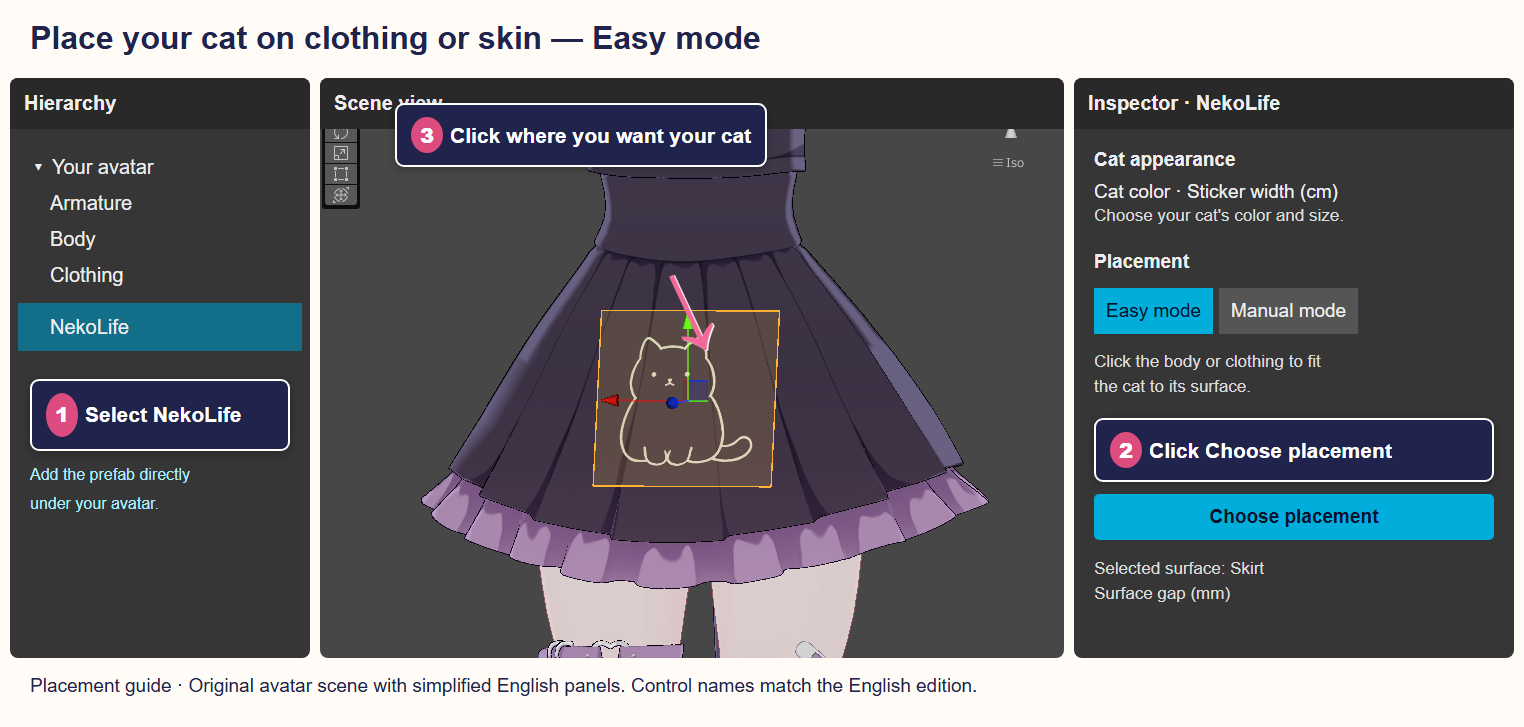
Manual mode follows the selected target's movement. It does not automatically conform to deformation of the clothing or body. Neither mode follows facial expressions or clothing shape-key deformation.
In the paid editions, resting a hand on the sticker makes your companion respond. You and your friends can both pet it. If it is on your hand or finger, use your opposite hand.
Spend time near someone using NekoLife, Dog Life (InuLife), or Giant Isopod Life and a companion may come to visit. Stay roughly within two meters of each other, measured between the centers of your chests. A visitor does not necessarily appear immediately, so spend some time together nearby. Both users should have their companions turned on and allow interaction in VRChat's Avatar Interactions settings.
When several compatible users are nearby, the visitor's species and color may not match one particular friend's companion.
Try a smaller size or move the sticker to a flatter surface.
Try another item of clothing, the body, or a flatter area. If the target lacks the required mesh, bone, or weight data, use Manual mode and choose a bone or object within the same avatar as the follow target.
Wait a little, then try again. If the sticker is on your hand or finger, pet it with the opposite hand. Check that interaction is permitted in VRChat's Avatar Interactions settings.
Both users should update to compatible versions, turn on their companions, and spend time nearby. A visit can take time. Check both users' Avatar Interactions settings as well.
If the error says your parameter budget is exceeded, check the entire avatar's usage. VRChat supports a total of 256 bits for synchronized custom parameters.
Each paid companion uses 9 parameters / 44 bits. The free cat edition uses 8 parameters / 29 bits. Include all other accessories when checking the total.
First, check the version shown in the companion's settings. If you use other animation-adjustment tools, back up your Unity project and temporarily remove those tools to check whether they are affecting the result.
Make sure the prefab is a child of the avatar and that the same product has not been added twice. Also check that Modular Avatar has finished importing.
Contact us through Jinxxy with the product name and version, what happened, and any other avatar tools you use. For errors, include the full red error from Unity's Console. For placement or display issues, include screenshots of the Hierarchy and companion settings.
Ask friends to update to compatible versions for companion visits.
Choose the companion you would like to see. Open the sections when you are ready for spoilers.
Walking, sleeping, grooming. Even on their own, cats enjoy life at their own pace.
When nothing is happening, your cat takes a relaxed little break.
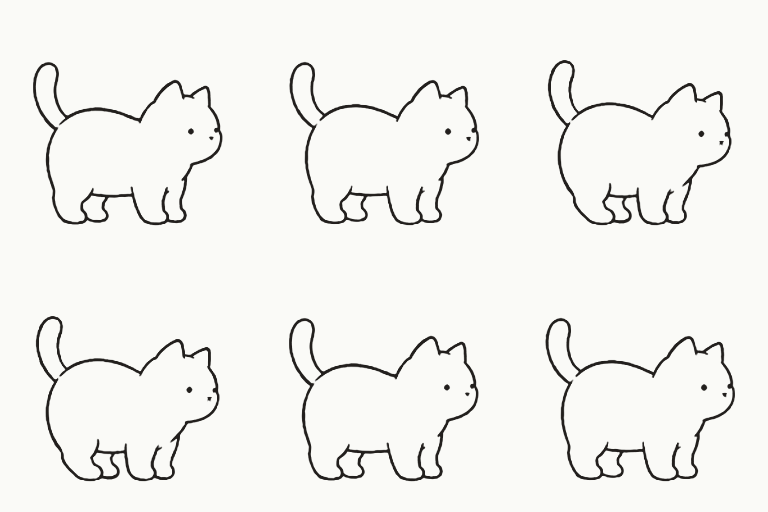
Your cat gets up for a moment and takes a look around.
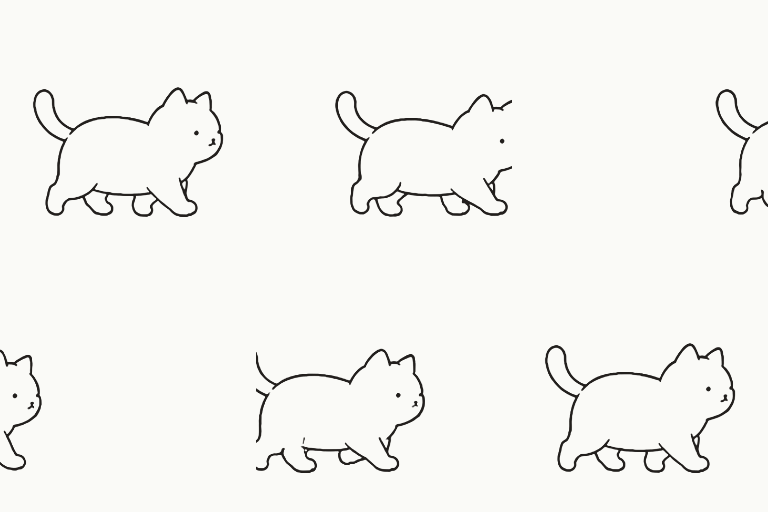
While awake, your cat strolls around the sticker.
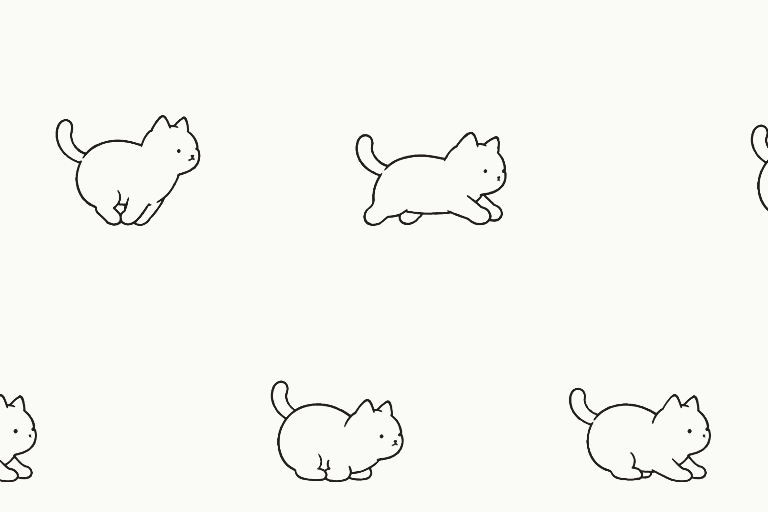
When the mood strikes, your cat trots along.
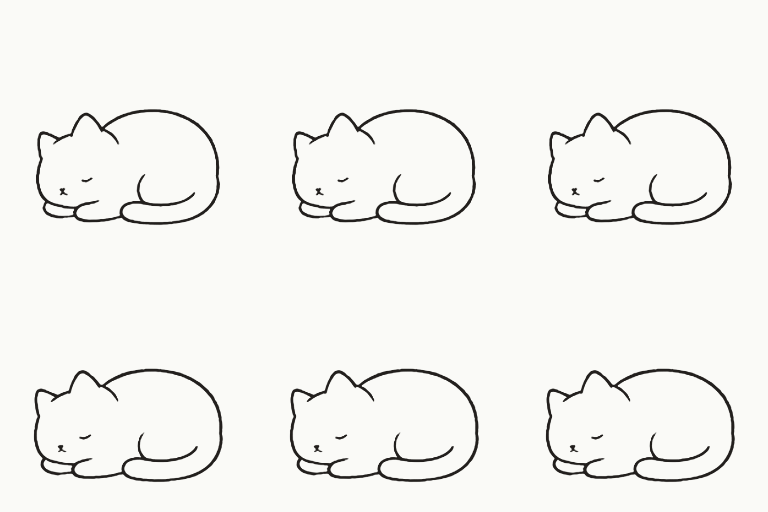
As your cat relaxes, it drifts into a peaceful sleep.
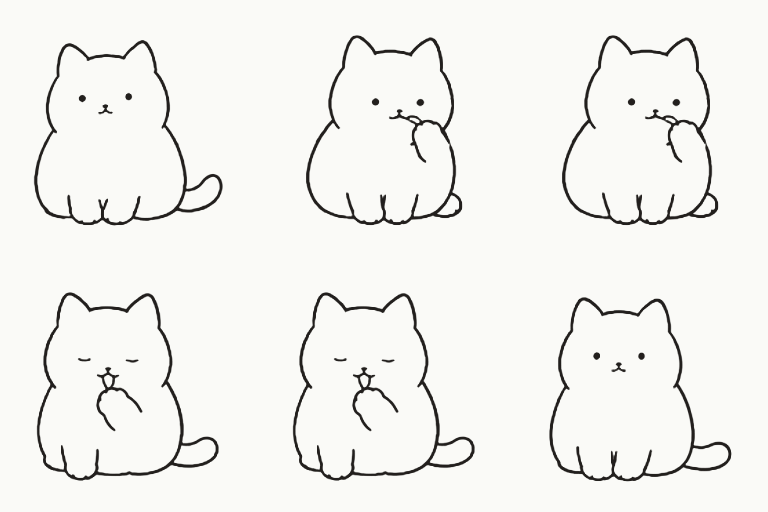
While spending time alone, your cat starts grooming.
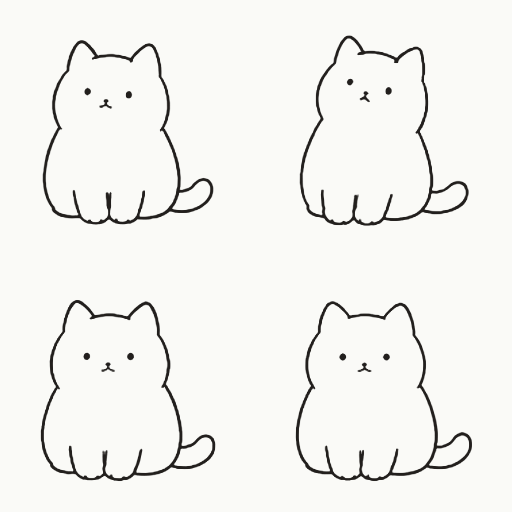
A loud voice can sometimes startle your cat.
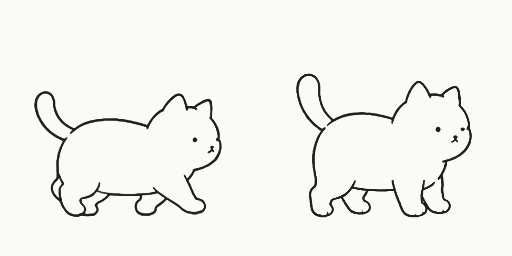
Pet your cat while it is walking, and it stops.
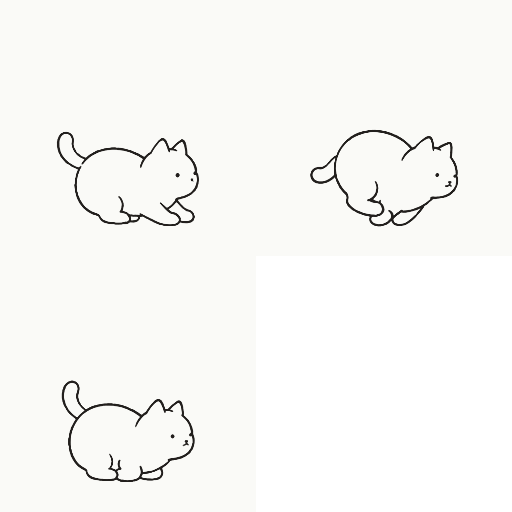
Pet your cat while it is running, and it slows down and stops.
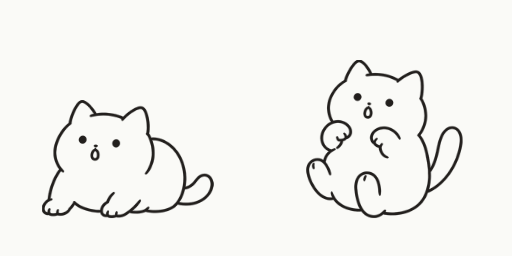
Even while asleep, your cat may react a little to a voice.
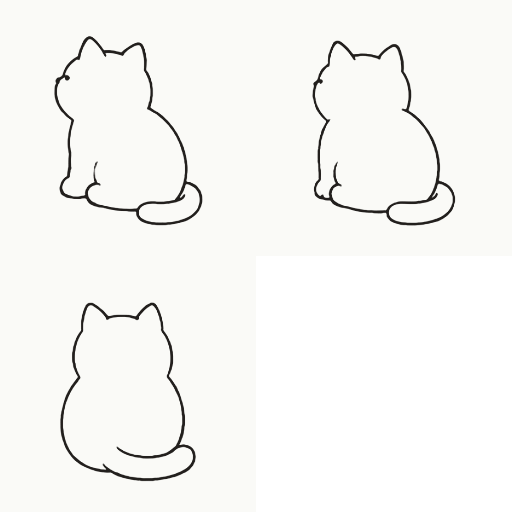
Your cat turns around while resting or when you change direction.
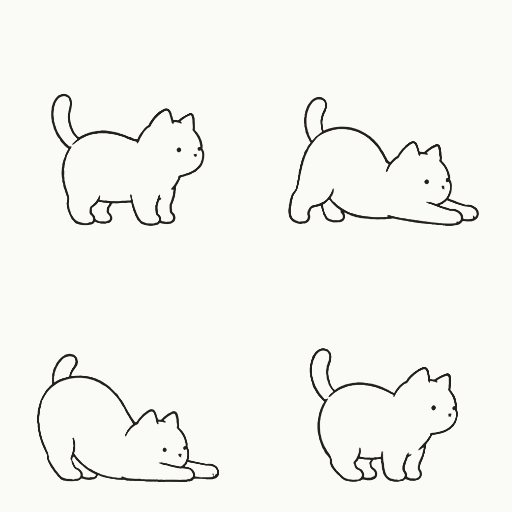
Your cat stretches out as it takes a break.
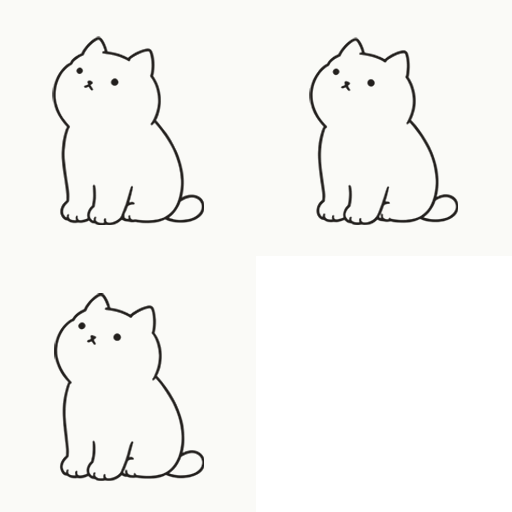
While relaxing, your cat sometimes looks up at you.
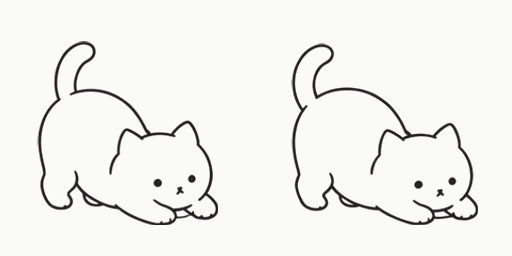
Your cat braces itself before starting to run.
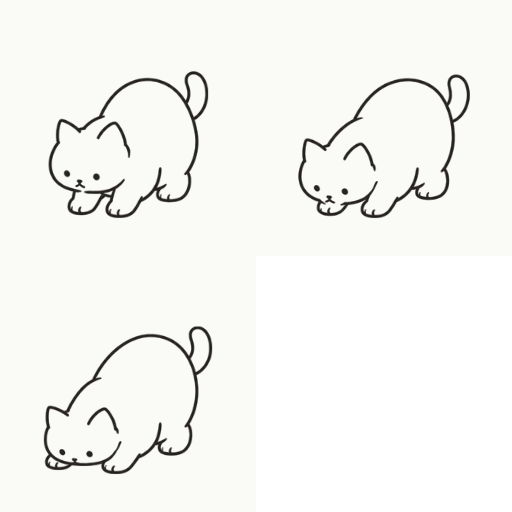
Your cat peeks its face out from the edge of the sticker.
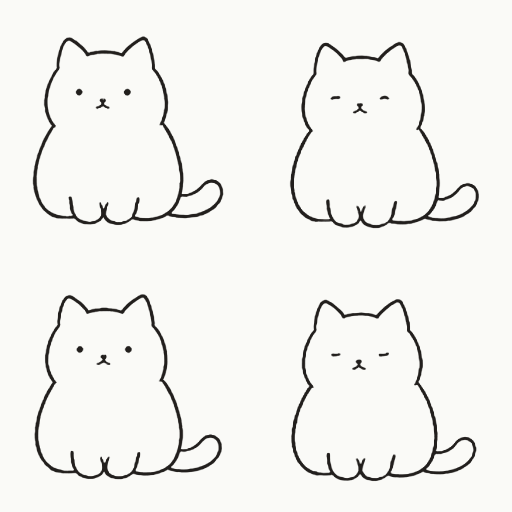
Your cat starts to doze before falling asleep.
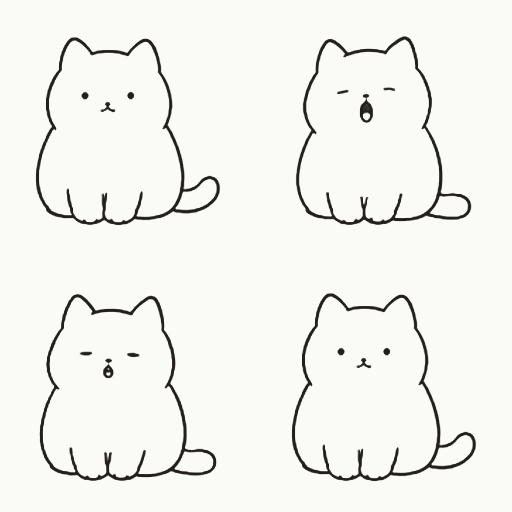
A gesture you may see while your cat relaxes on its own.
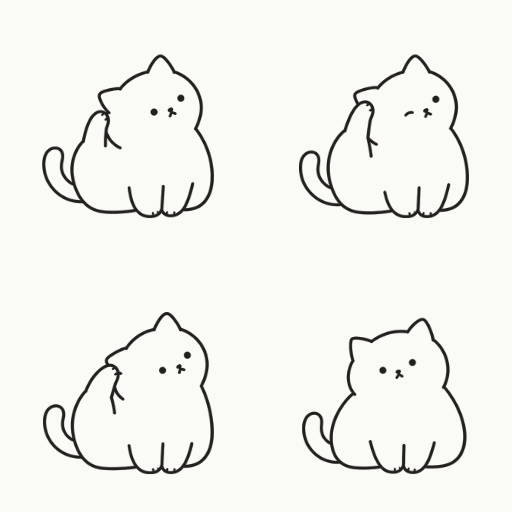
A gesture you may see while your cat relaxes on its own.
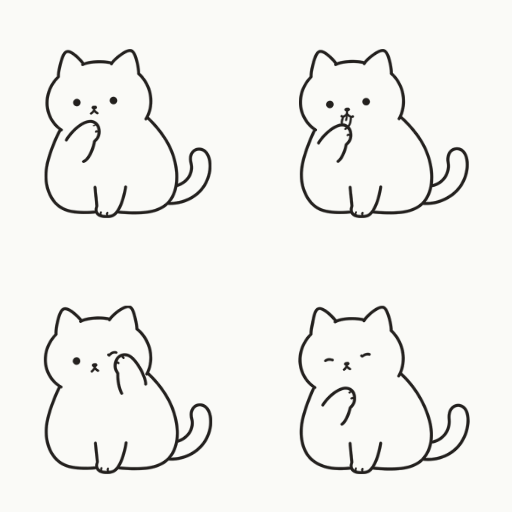
A gesture you may see while your cat relaxes on its own.
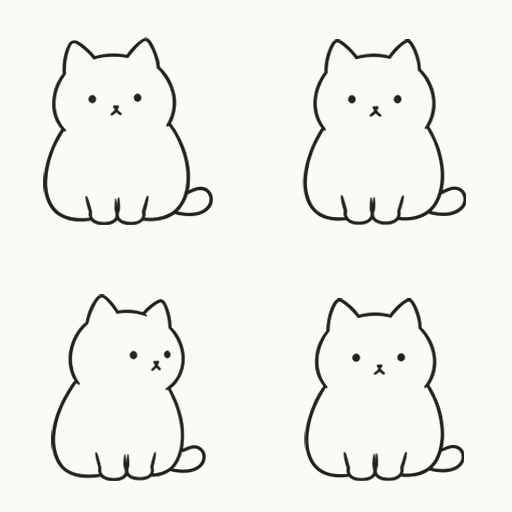
A gesture you may see while your cat relaxes on its own.
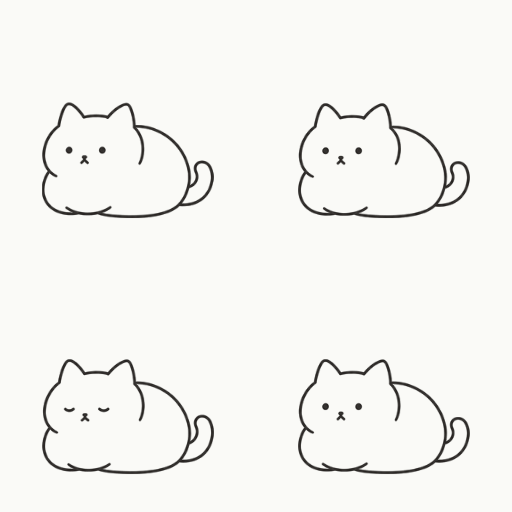
A gesture you may see while your cat relaxes on its own.
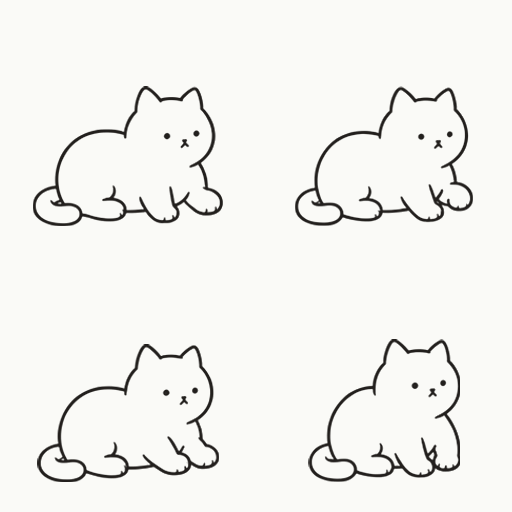
While relaxing alone, your cat sometimes starts kneading.
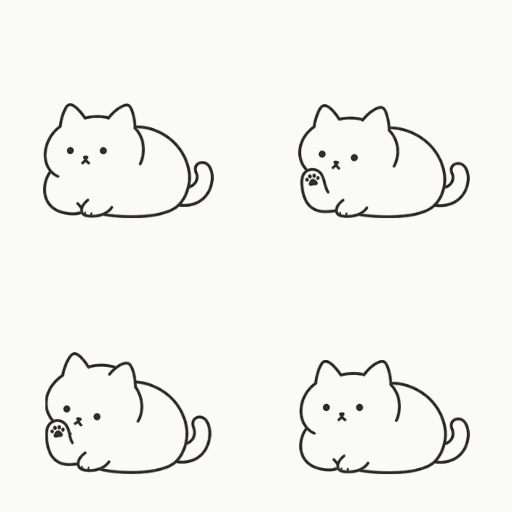
A gesture you may see while your cat relaxes on its own.
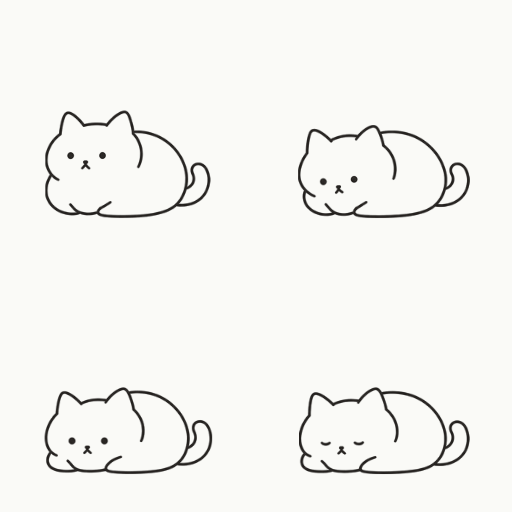
A gesture you may see while your cat relaxes on its own.
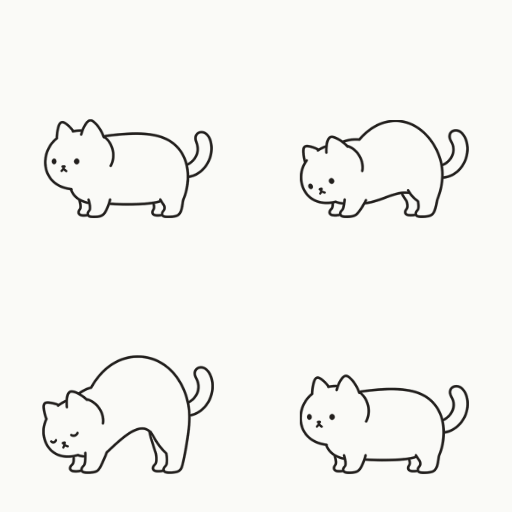
A gesture you may see while your cat relaxes on its own.
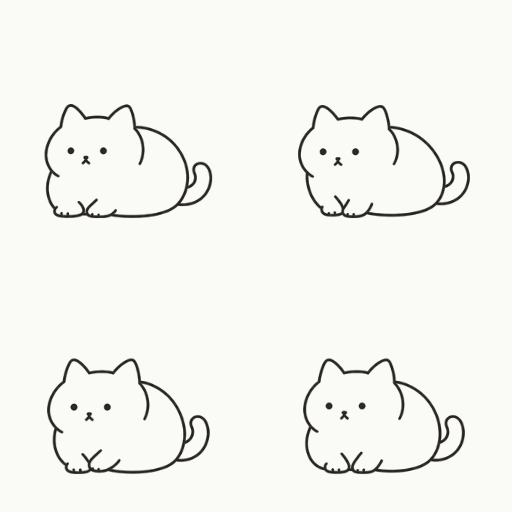
A gesture you may see while your cat relaxes on its own.
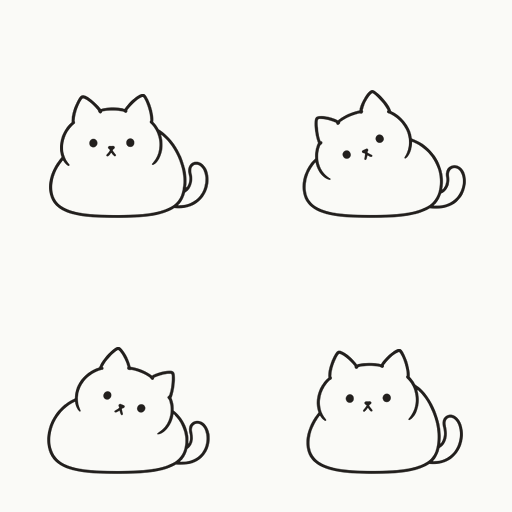
A gesture you may see while your cat relaxes on its own.
Place a hand on the sticker and your cat responds with expressions and gestures. Try a gentle pet while it is asleep, too.
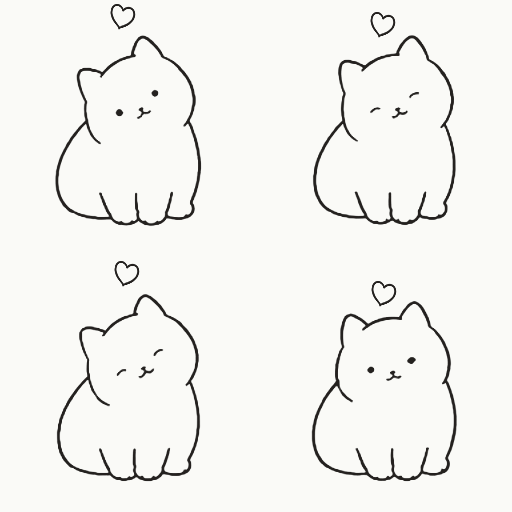
This is how an awake cat responds when you pet it.
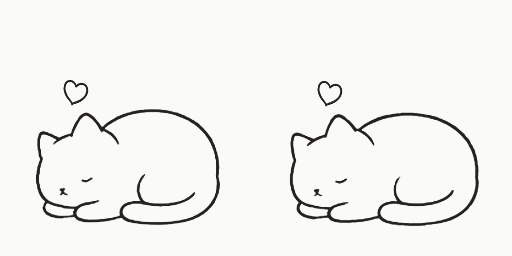
Touch your sleeping cat and its ears give a little twitch.
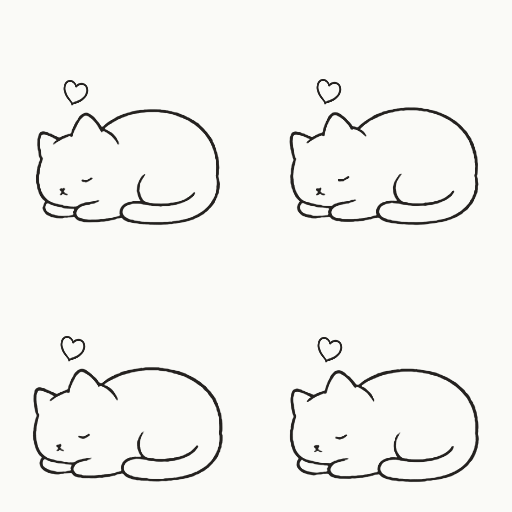
Gently pet your sleeping cat and it responds without waking up.
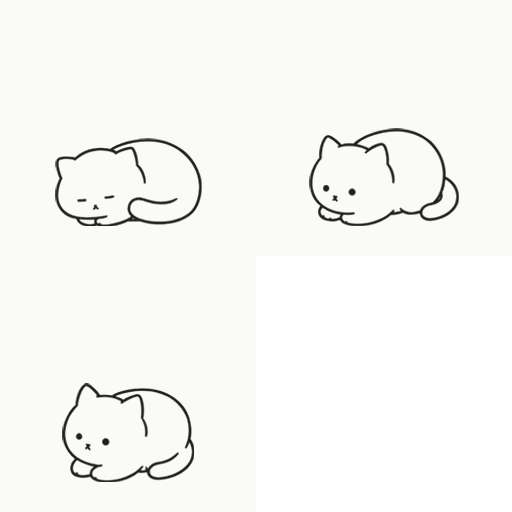
Petting a sleeping cat may wake it up.
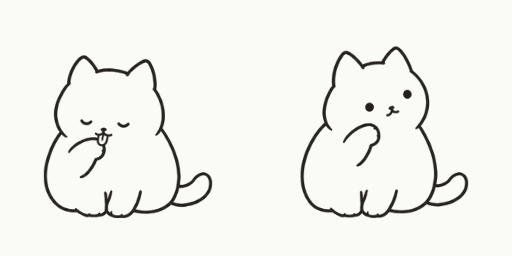
Touch your cat while it is grooming and it turns its attention toward you.
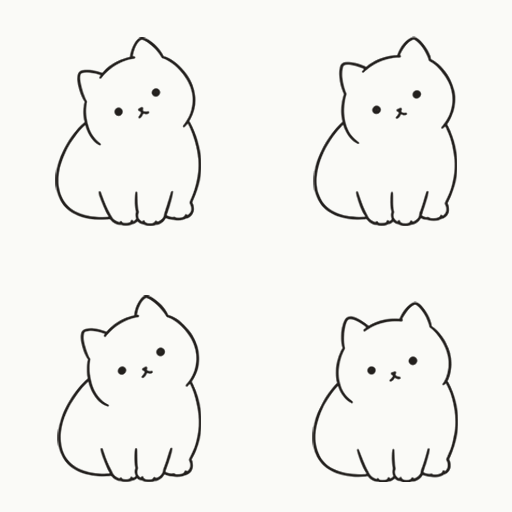
Your cat waits for a pet, looking as though it wants your attention.
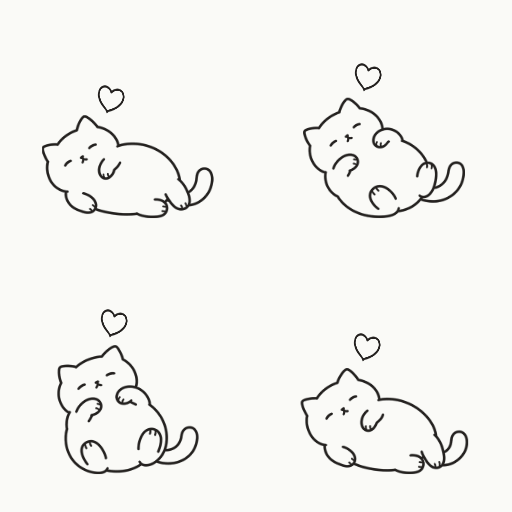
This is how an awake cat responds when you pet it.
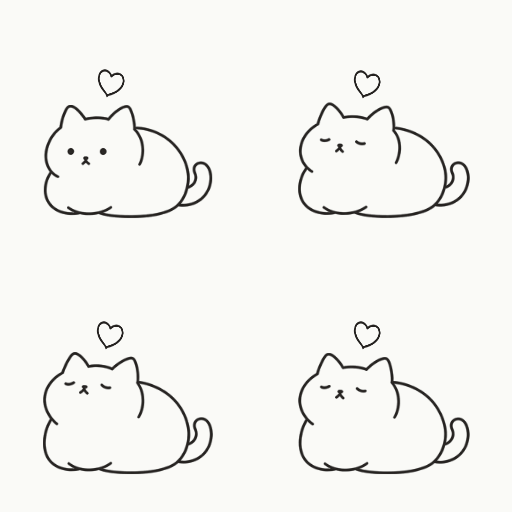
This is how an awake cat responds when you pet it.
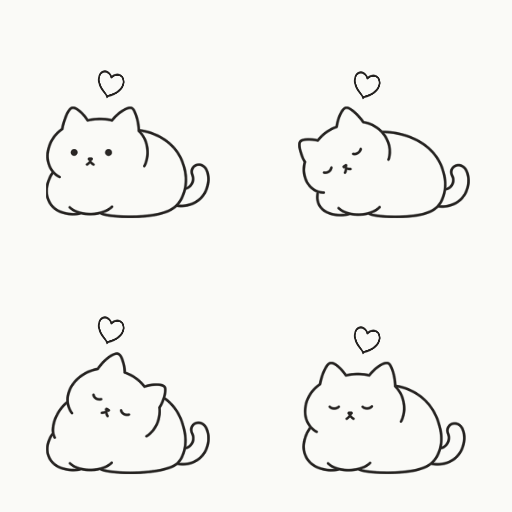
This is how an awake cat responds when you pet it.
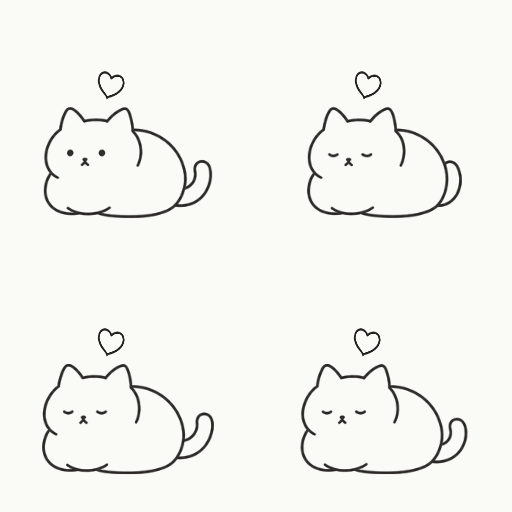
This is how an awake cat responds when you pet it.
As you spend time together, your cat gradually develops its own personality. Your daily activities influence which personalities are more likely. Open a personality that interests you.
Recent activities and time spent together in the past help shape your cat's personality. Frequent little interactions matter, as well as total petting time. Sometimes a different personality appears on a whim. Even similar routines can lead to different growth.
Growth usually takes around an hour. It pauses while AFK or while the cat is off, and may take longer depending on avatar update conditions. Growth does not always result in a different personality.
Switching avatars, changing worlds, or closing VRChat resets progress toward the next growth update. Completed growth and personality are saved for that avatar.
Always ready to find a game. Your cat pounces and chases its tail.
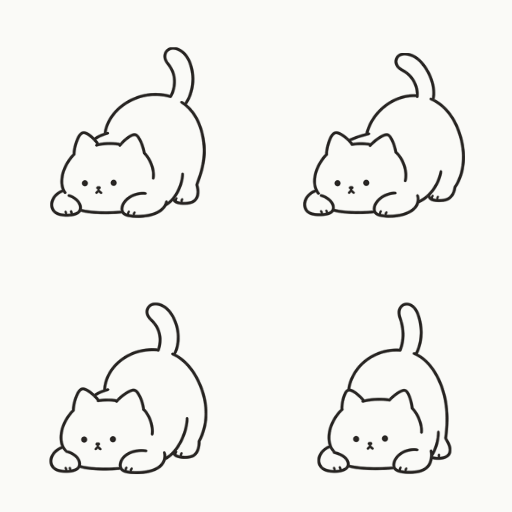
A gesture a Playful cat shows while spending time on its own.
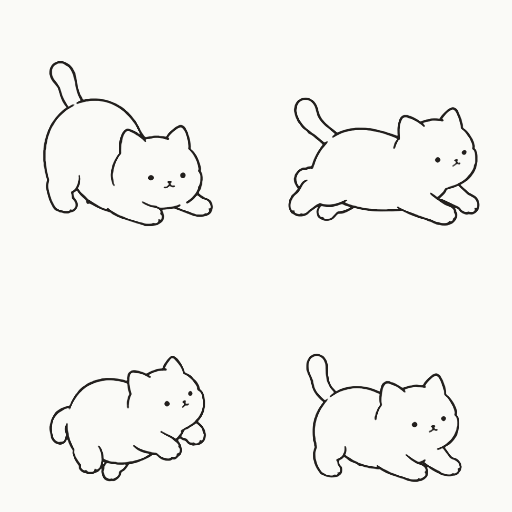
A gesture a Playful cat shows while spending time on its own.
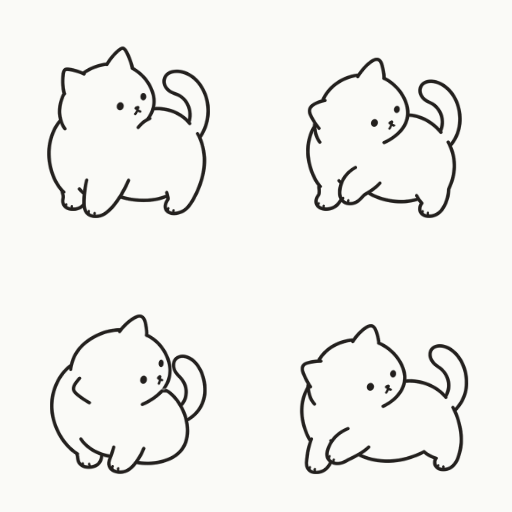
A gesture a Playful cat shows while spending time on its own.
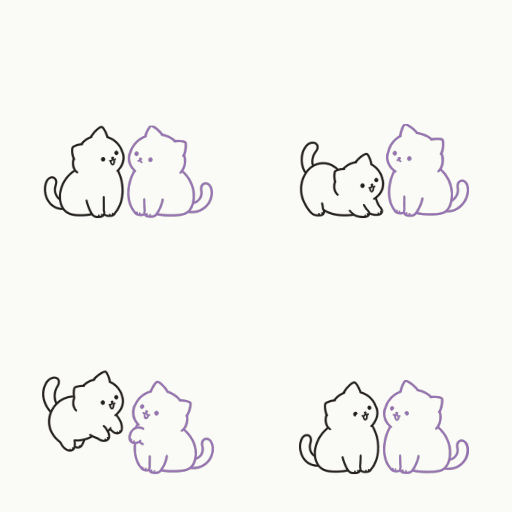
A gesture seen with a Playful visiting cat.
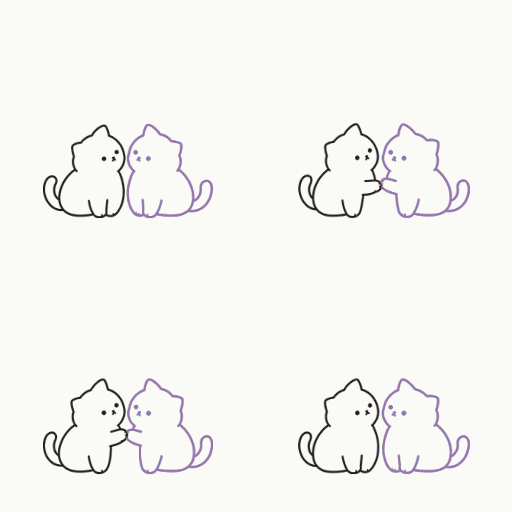
A gesture seen with a Playful visiting cat.
Loves time spent being petted. Your cat rubs its cheek and shows its belly to ask for affection.
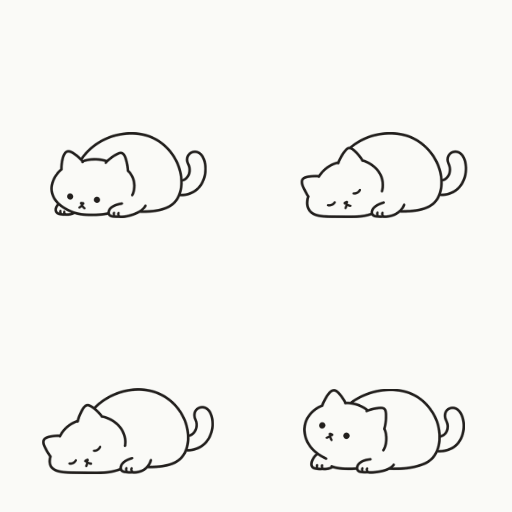
A gesture an Affectionate cat shows while spending time on its own.
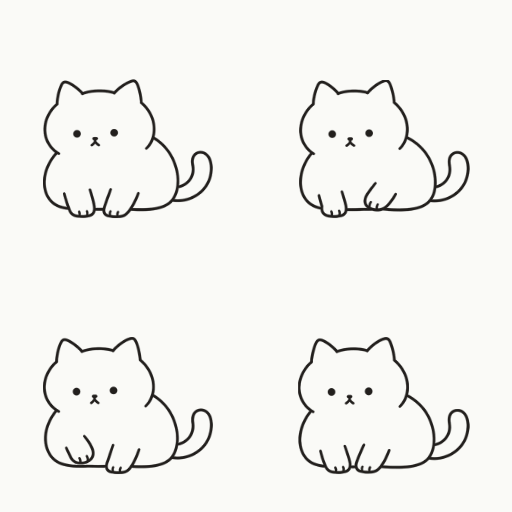
A gesture an Affectionate cat shows while spending time on its own.
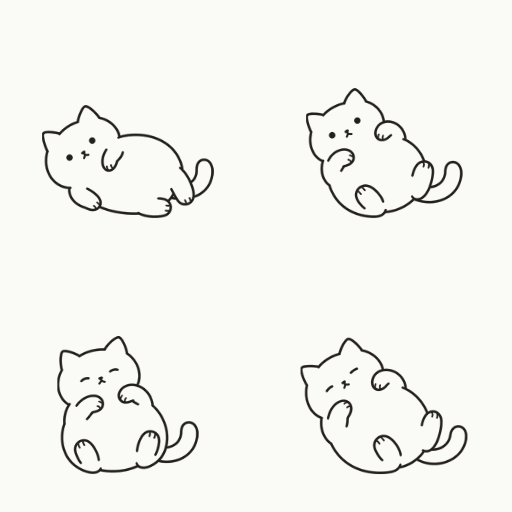
A gesture an Affectionate cat shows while spending time on its own.
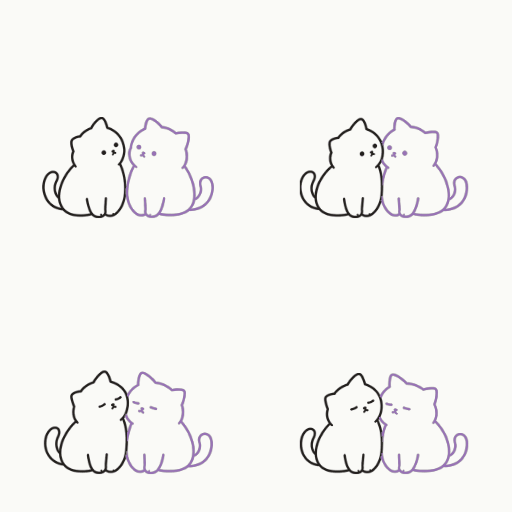
A gesture seen with an Affectionate visiting cat.
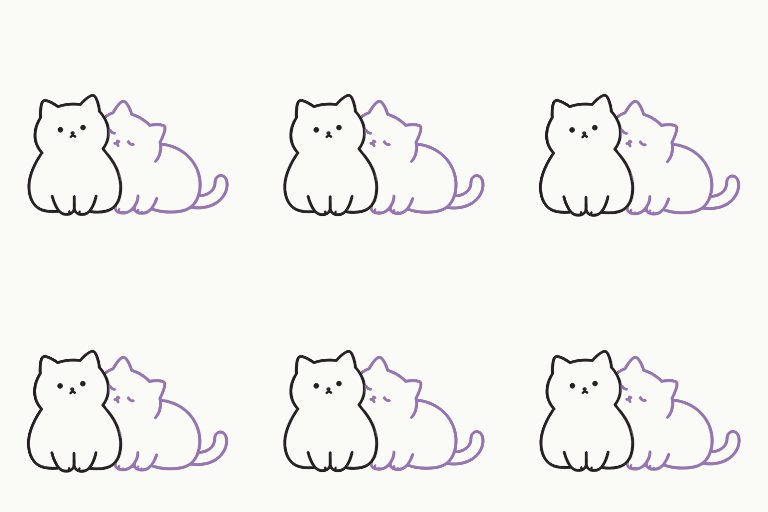
A gesture seen with an Affectionate visiting cat.
Chats with mouth and facial movements, making gestures as though replying to you.
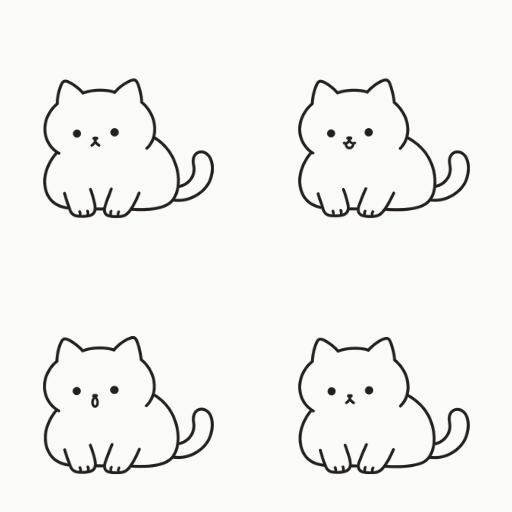
A gesture a Chatty cat shows while spending time on its own.
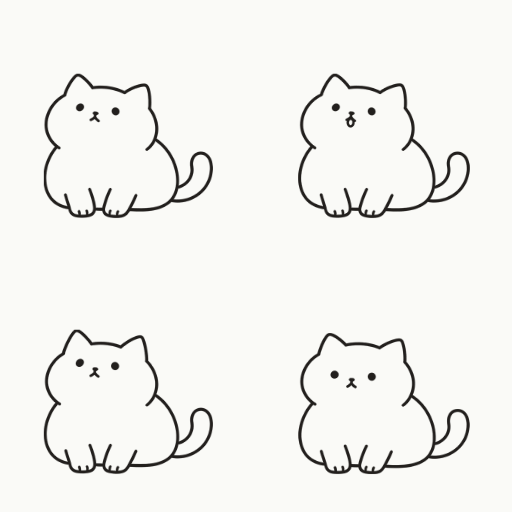
A gesture a Chatty cat shows while spending time on its own.
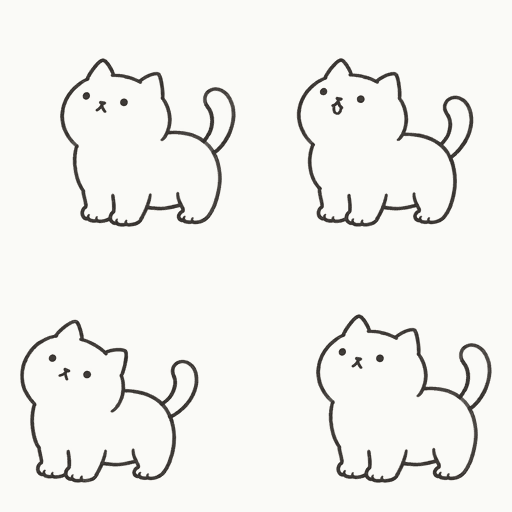
A gesture a Chatty cat shows while spending time on its own.
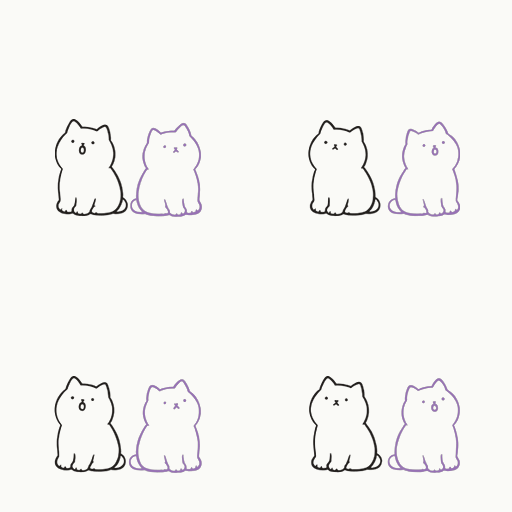
A gesture seen with a Chatty visiting cat.
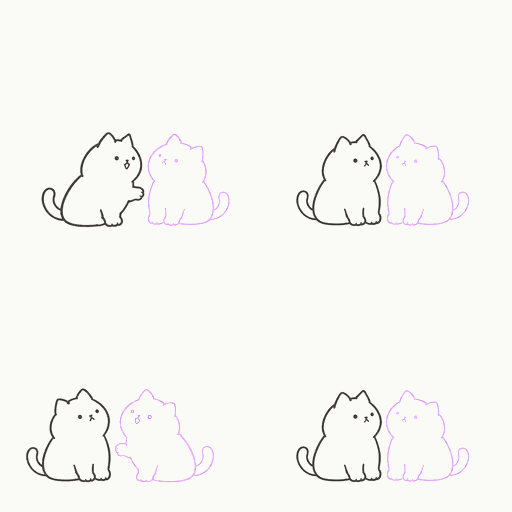
A gesture seen with a Chatty visiting cat.
Loves nap time. Your cat flops onto its side and twitches in its dreams.
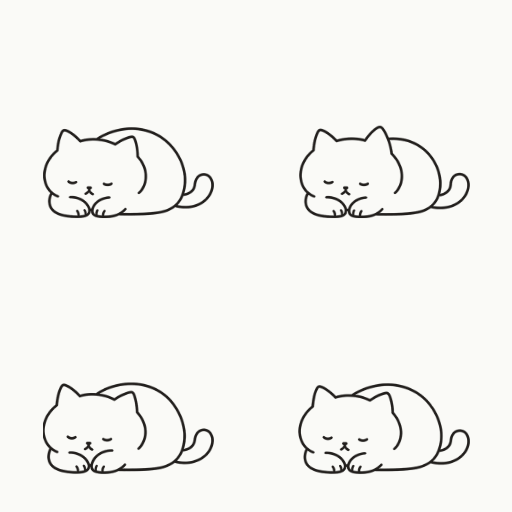
A gesture a Sleepy cat shows while spending time on its own.
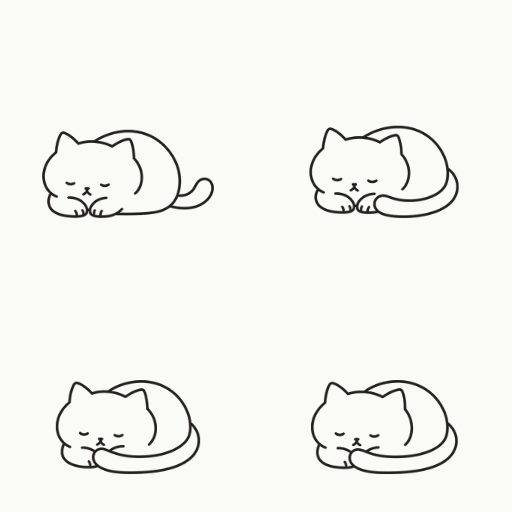
A gesture a Sleepy cat shows while spending time on its own.
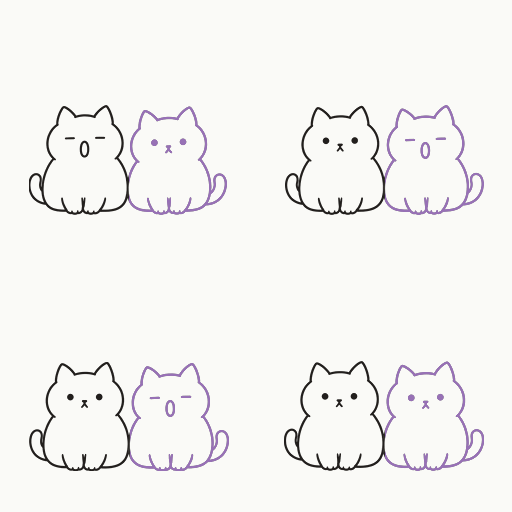
A gesture a Sleepy cat shows while spending time on its own.
A gesture seen with a Sleepy visiting cat.
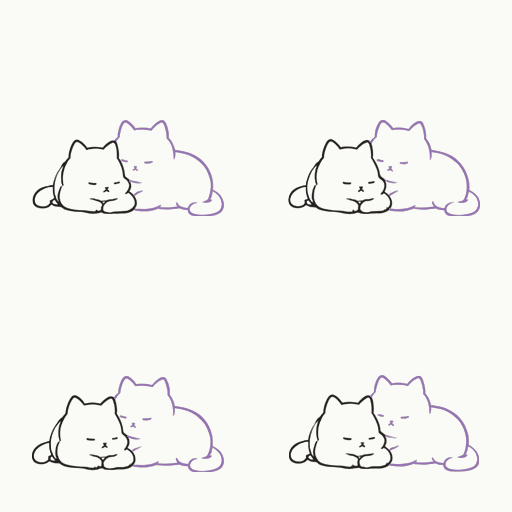
A gesture seen with a Sleepy visiting cat.
Calm, gentle gestures. Your cat blinks slowly and softly offers a paw.
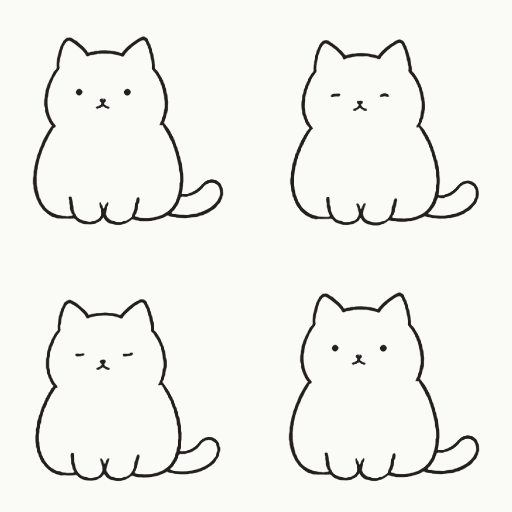
A gesture a Gentle cat shows while spending time on its own.
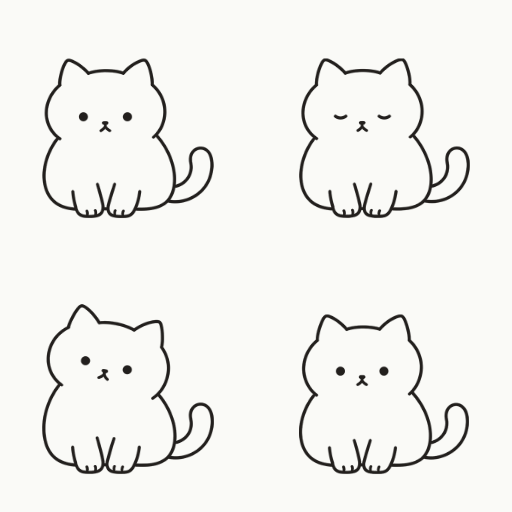
A gesture a Gentle cat shows while spending time on its own.
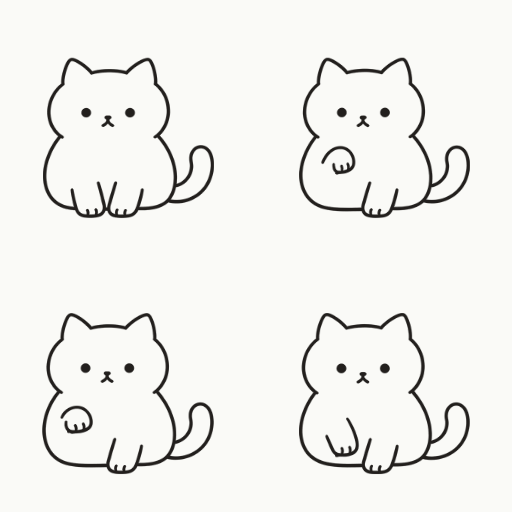
A gesture a Gentle cat shows while spending time on its own.
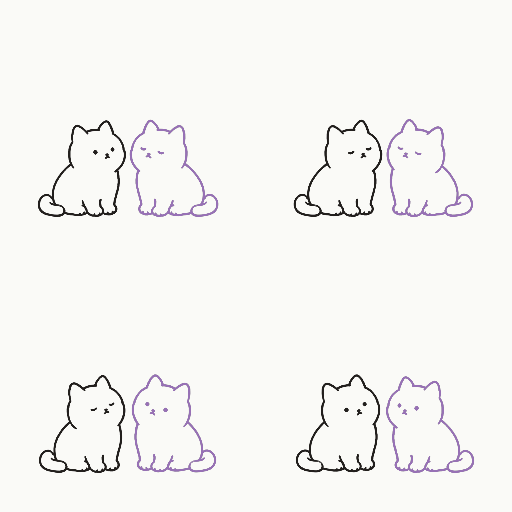
A gesture seen with a Gentle visiting cat.
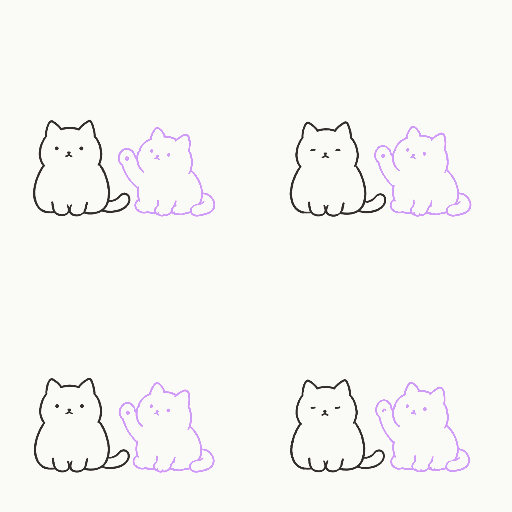
A gesture seen with a Gentle visiting cat.
So many things to investigate. Your cat sniffs around and listens carefully.
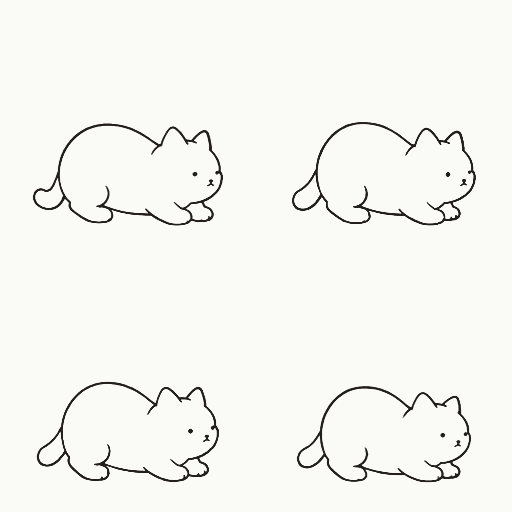
A gesture a Curious cat shows while spending time on its own.
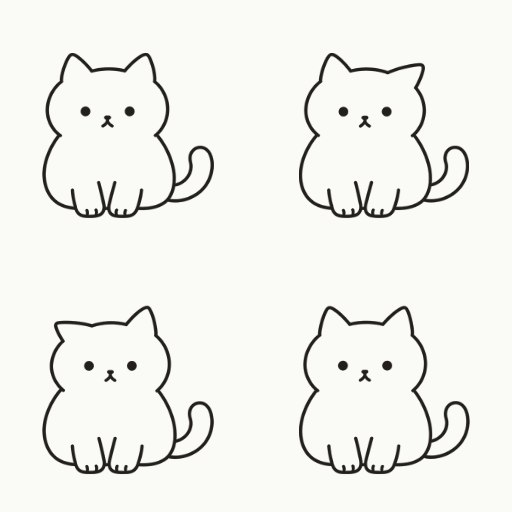
A gesture a Curious cat shows while spending time on its own.
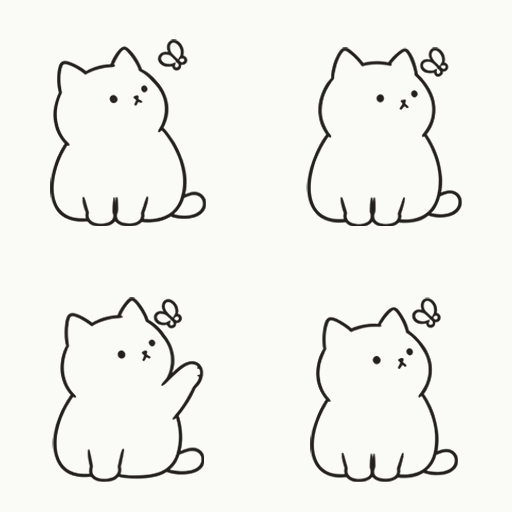
A gesture a Curious cat shows while spending time on its own.
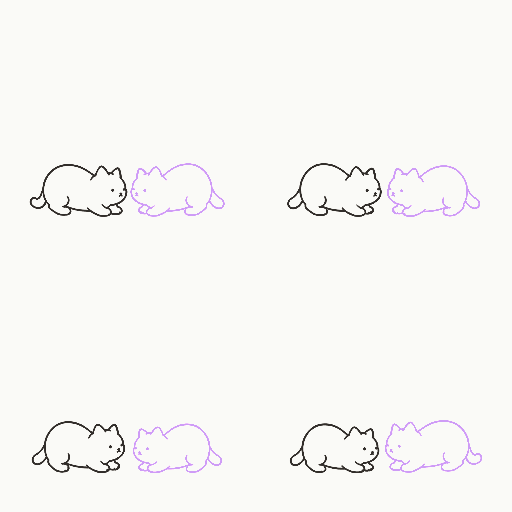
A gesture seen with a Curious visiting cat.
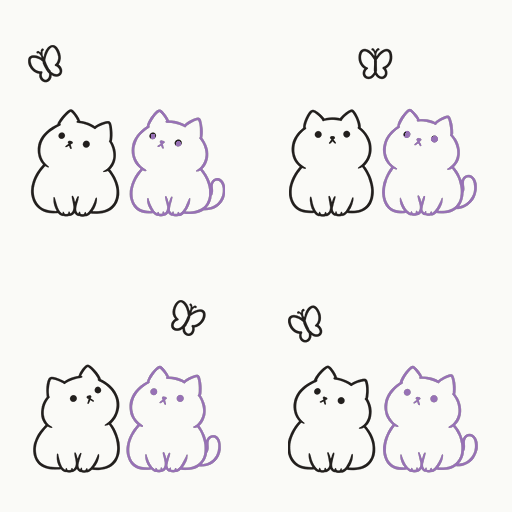
A gesture seen with a Curious visiting cat.
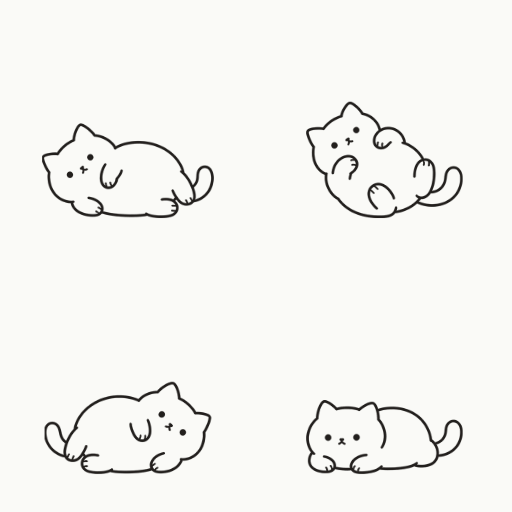
One moment your cat turns away, the next it rolls over. You never quite know what gesture will come next.
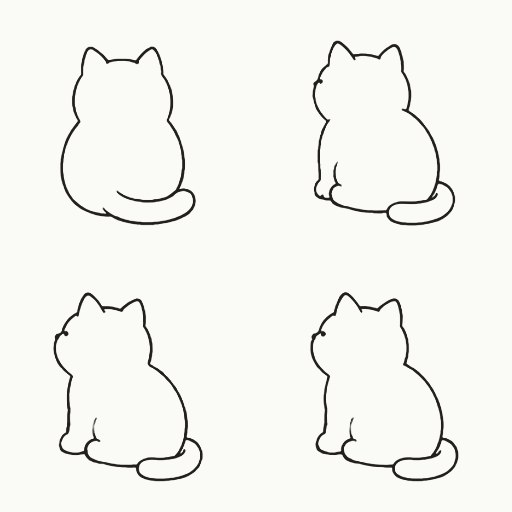
A gesture a Moody cat shows while spending time on its own.
A gesture a Moody cat shows while spending time on its own.
A gesture a Moody cat shows while spending time on its own.
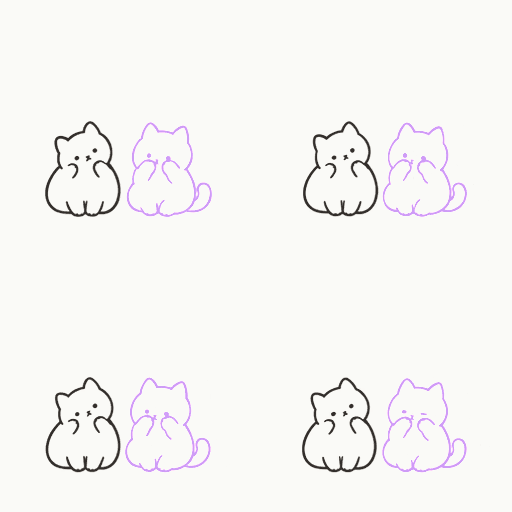
A gesture seen with a Moody visiting cat.
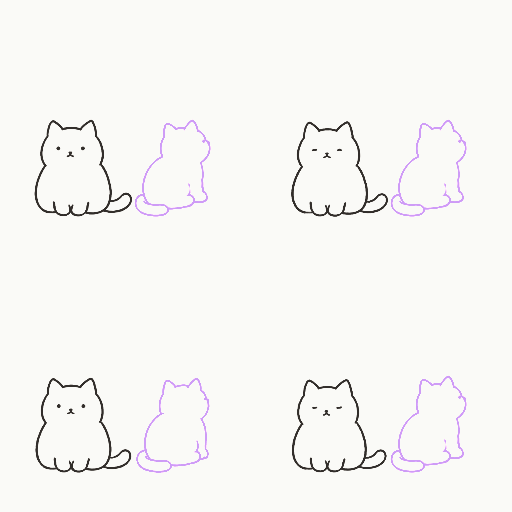
A gesture seen with a Moody visiting cat.
Relaxes at its own pace, stretching out a paw while lying down or resting with its back turned.
A gesture an Easygoing cat shows while spending time on its own.
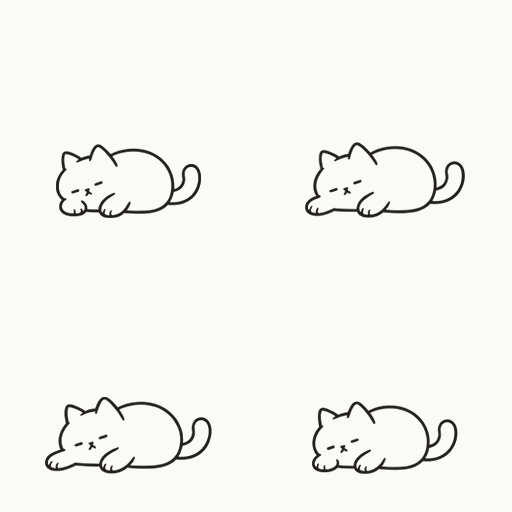
A gesture an Easygoing cat shows while spending time on its own.
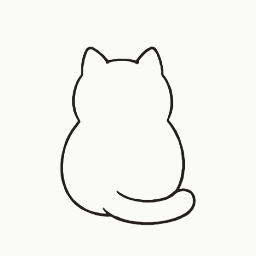
A gesture an Easygoing cat shows while spending time on its own.
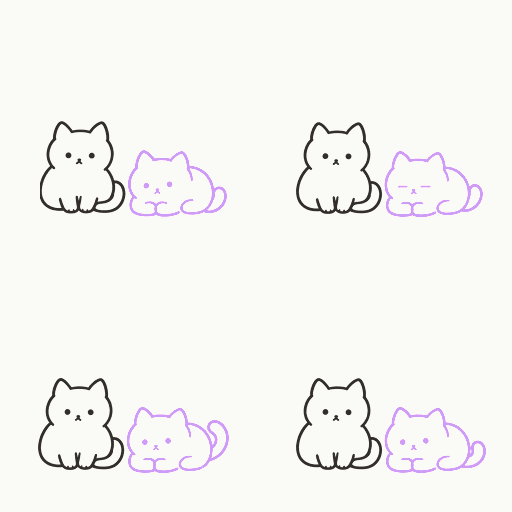
A gesture seen with an Easygoing visiting cat.
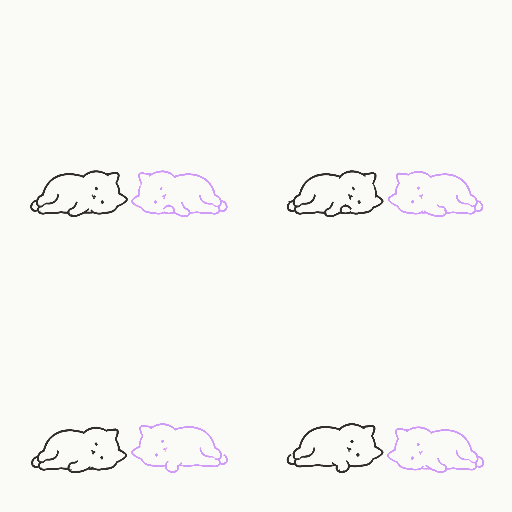
A gesture seen with an Easygoing visiting cat.
Spend time near another NekoLife series user and a companion may come to visit. Both users need compatible versions, their companions turned on, and permission in Avatar Interactions. Visitors arrive at their own pace. These examples show the paid cat edition's cat-pair animations.
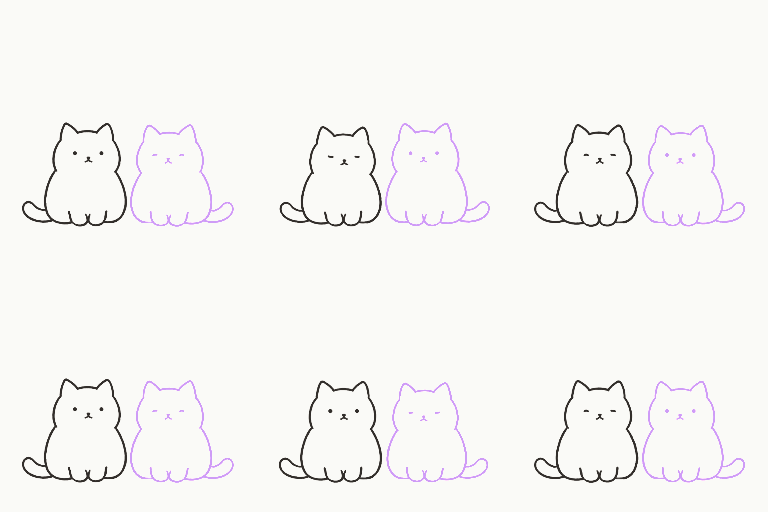
You can see this while a friend's cat is visiting.
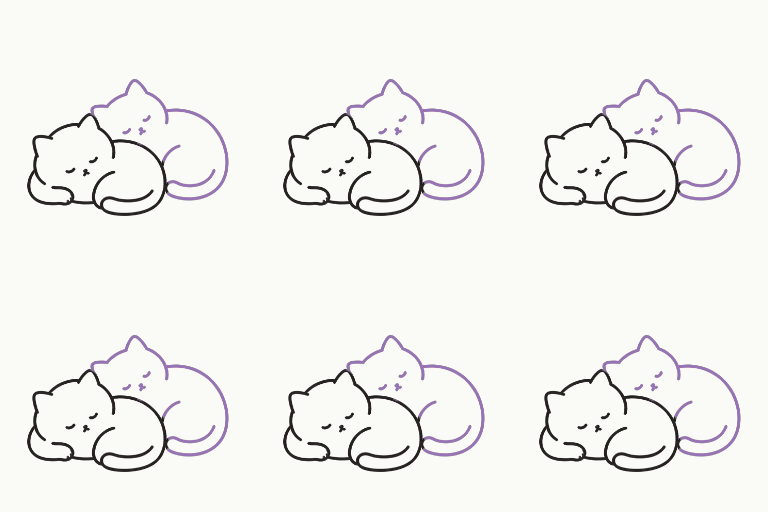
You can see this while a friend's cat is visiting.
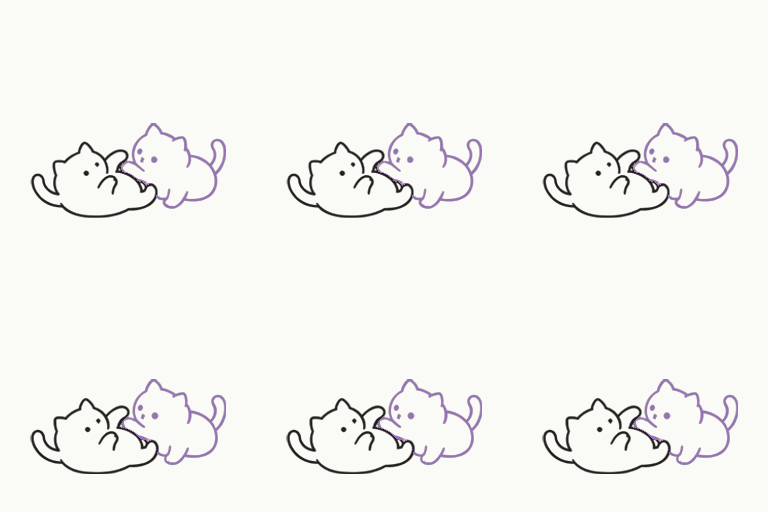
You can see this while a friend's cat is visiting.
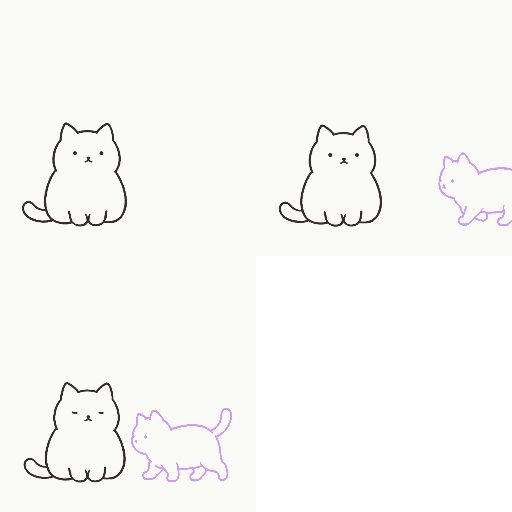
After spending some time near another cat, a friend comes to visit.
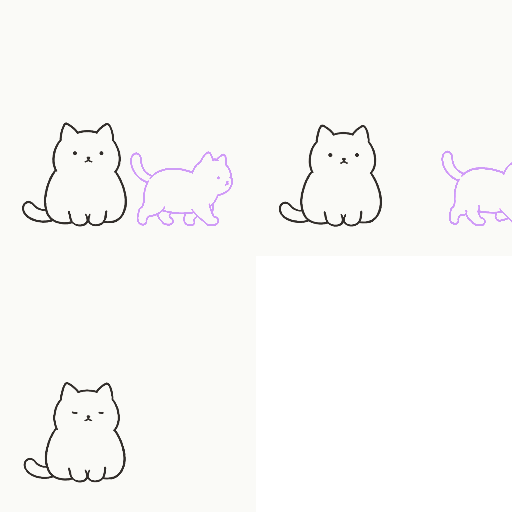
Move away from your friend and your cat returns to time on its own.
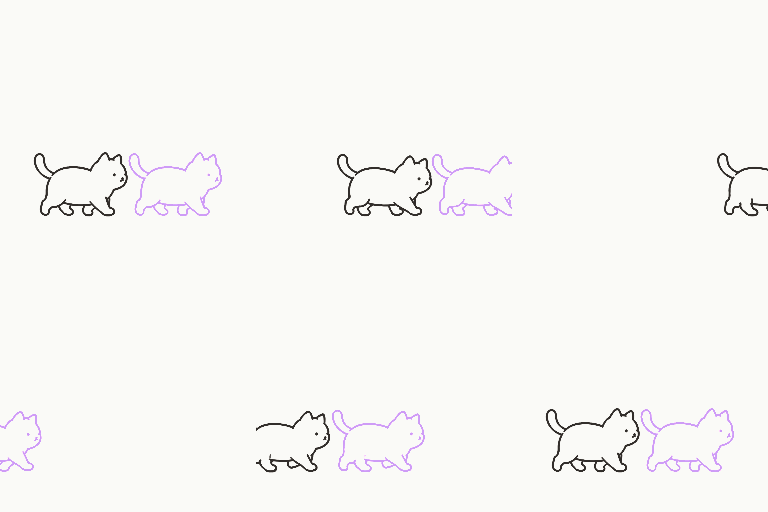
You can see this while a friend's cat is visiting.
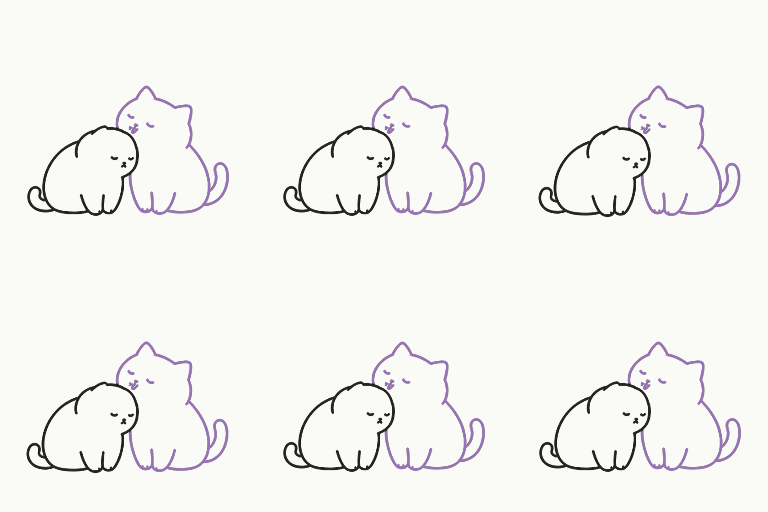
You can see this while a friend's cat is visiting.
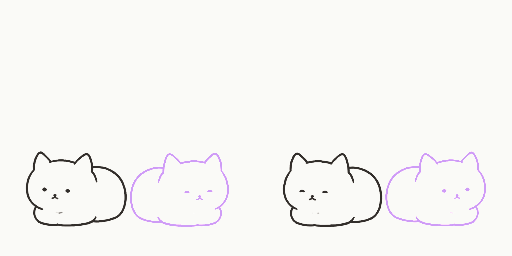
You can see this while a friend's cat is visiting.
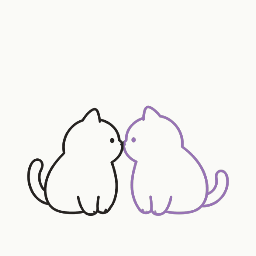
You can see this while a friend's cat is visiting.
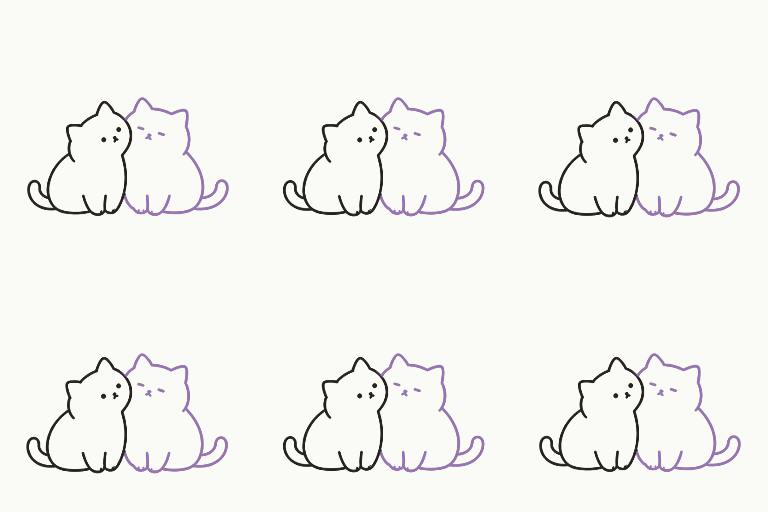
You can see this while a friend's cat is visiting.
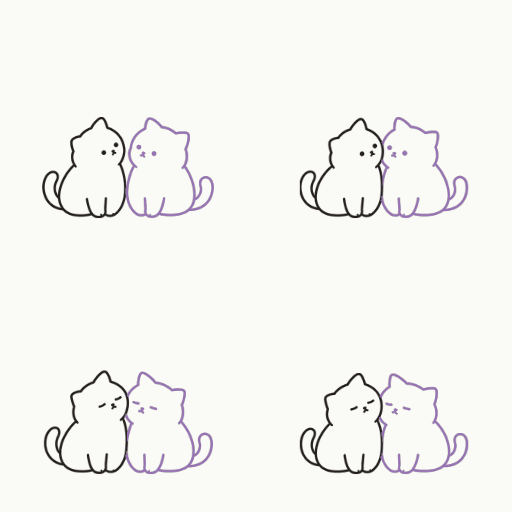
You can see this while a friend's cat is visiting.
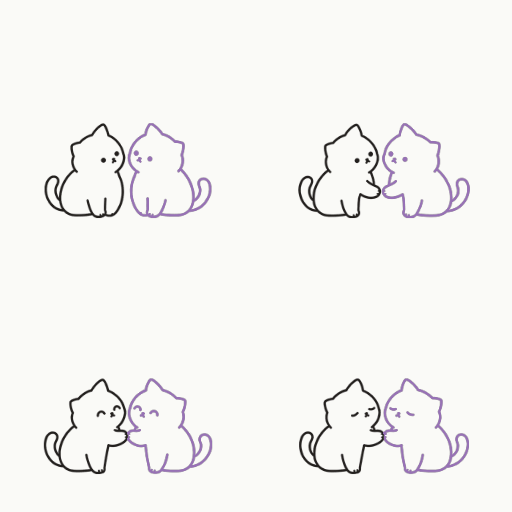
You can see this while a friend's cat is visiting.
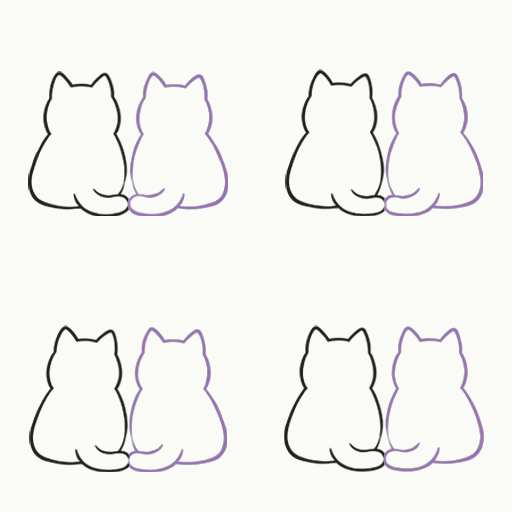
You can see this while a friend's cat is visiting.
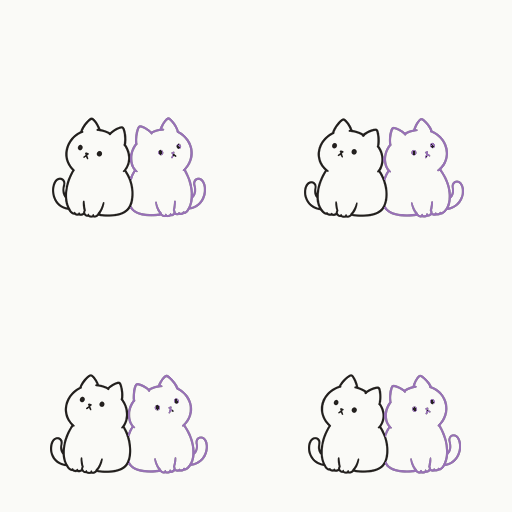
You can see this while a friend's cat is visiting.
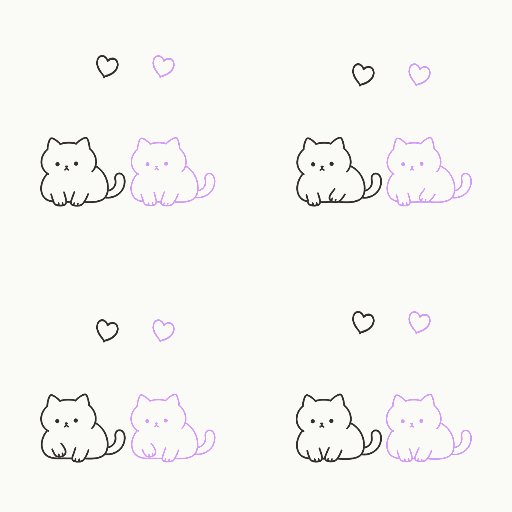
Both cats knead while relaxing together.
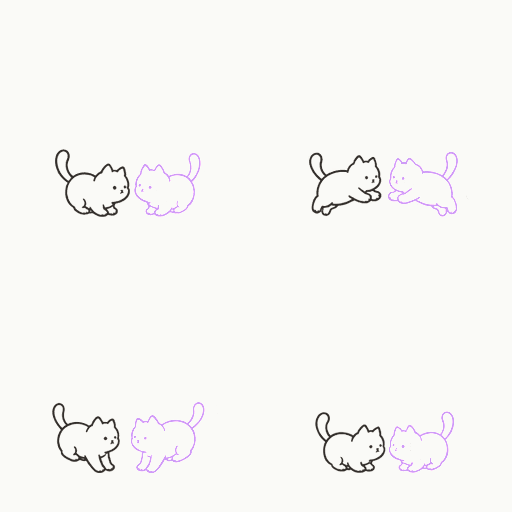
When you jump, both cats may hop with you.
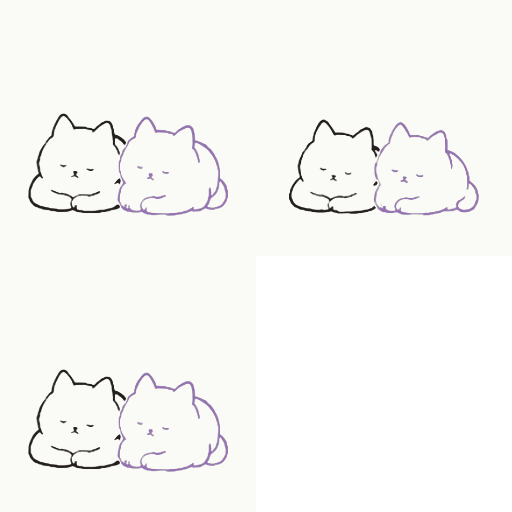
When you crouch, both cats may lower themselves too.
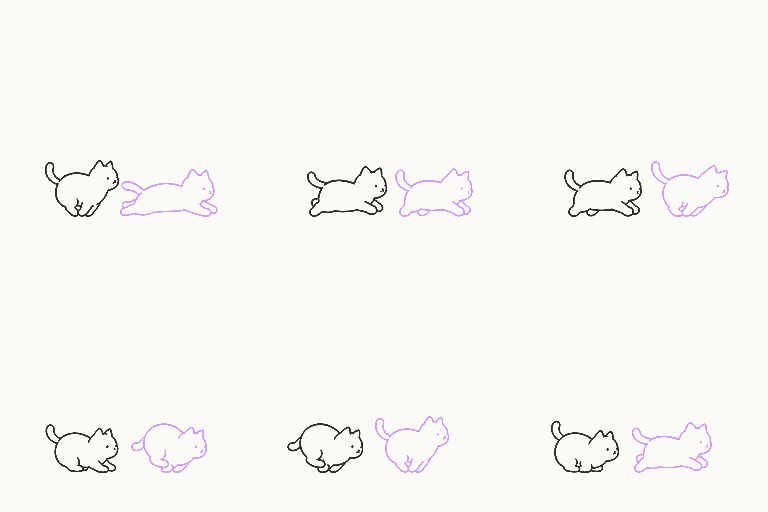
After you run for a while, the cats may chase each other.
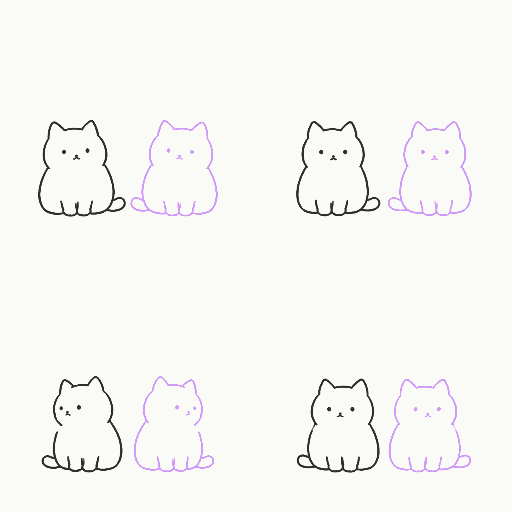
When you make a large turn, both cats may turn around too.
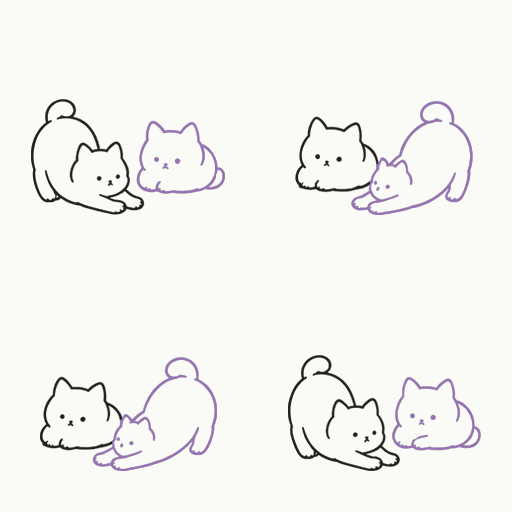
When you stop after walking, both cats may stretch.
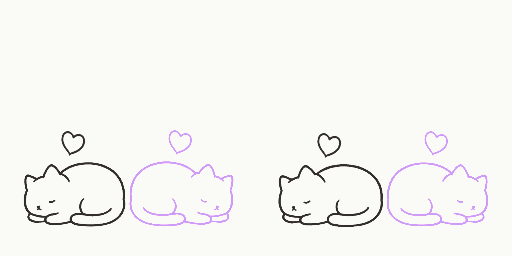
Pet both sleeping cats and they respond without getting up.
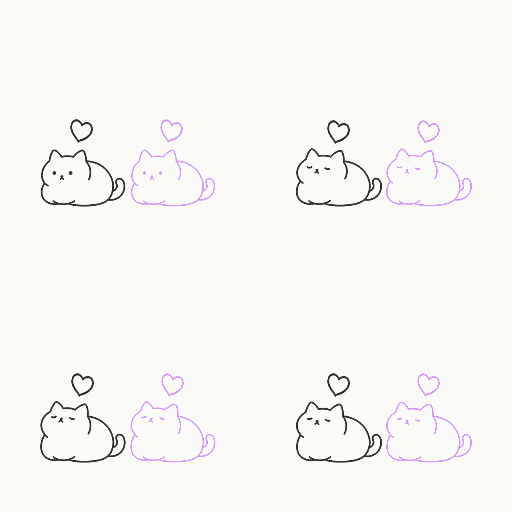
This is how the pair responds when you pet them.
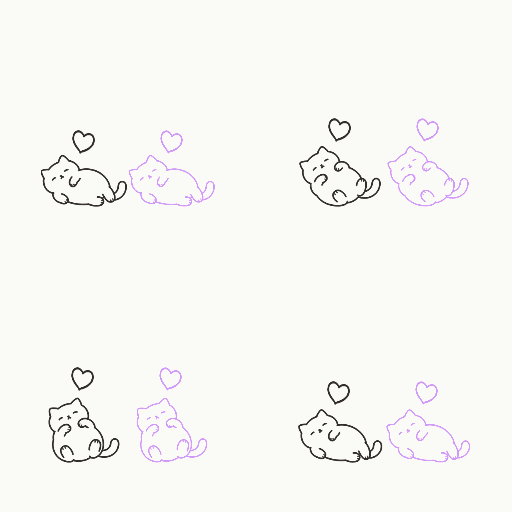
This is how the pair responds when you pet them.
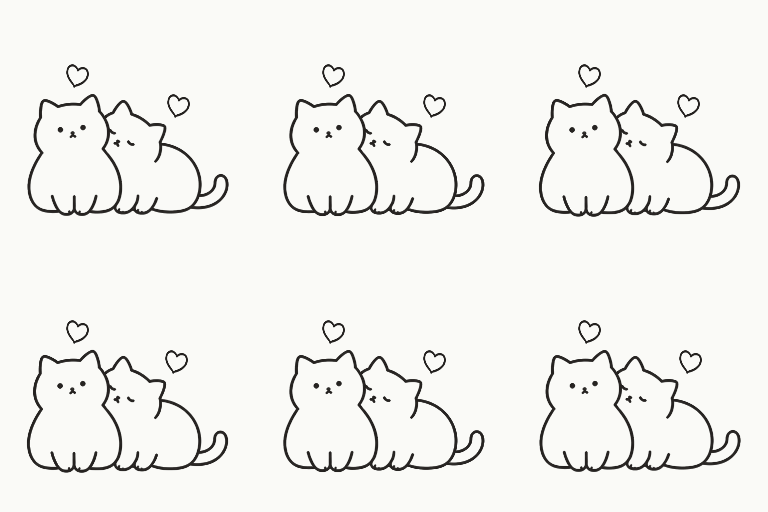
This is how the pair responds when you pet them.
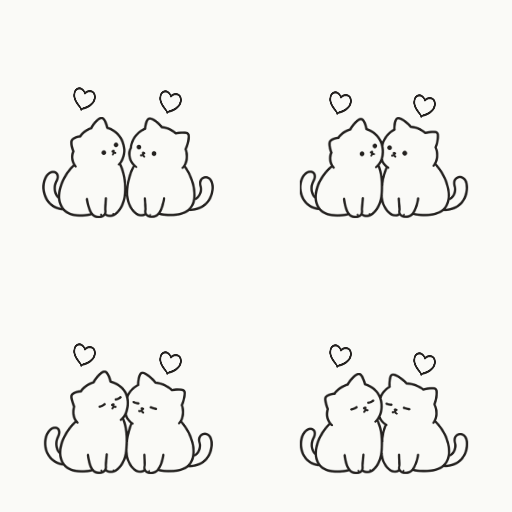
This is how the pair responds when you pet them.
Sometimes you will see something a little out of the ordinary. Relax and watch, and your cat may surprise you.
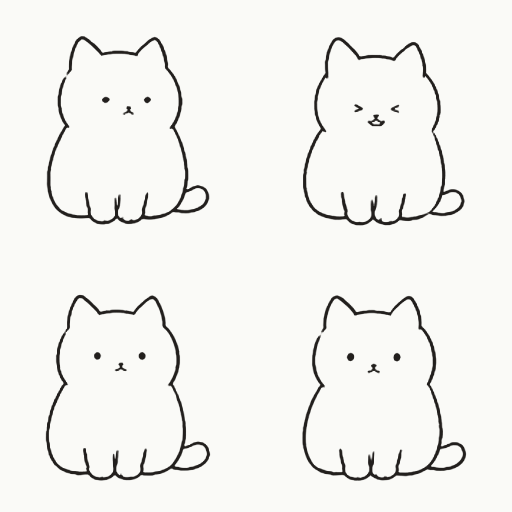
An occasional gesture your cat shows while on its own.
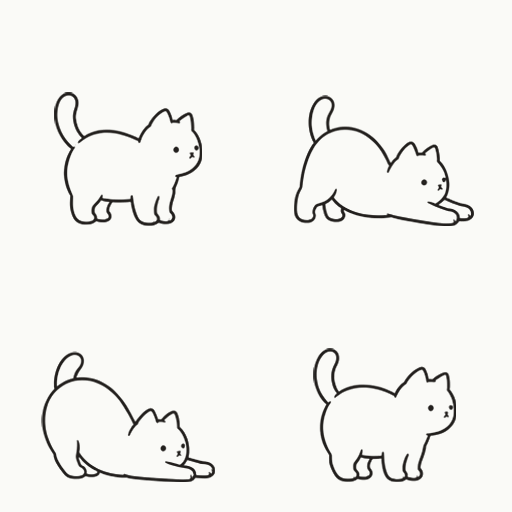
An occasional gesture your cat shows while on its own.
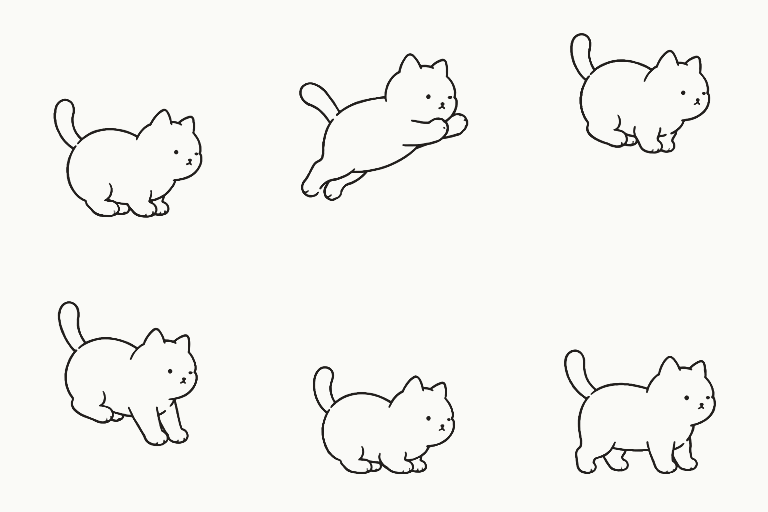
An occasional gesture your cat shows while on its own.
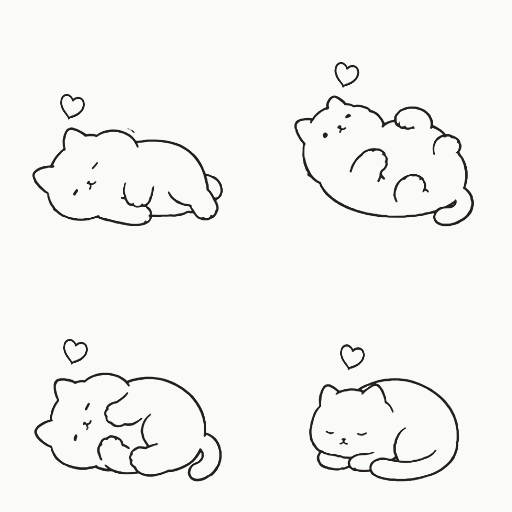
An occasional gesture your cat shows while on its own.
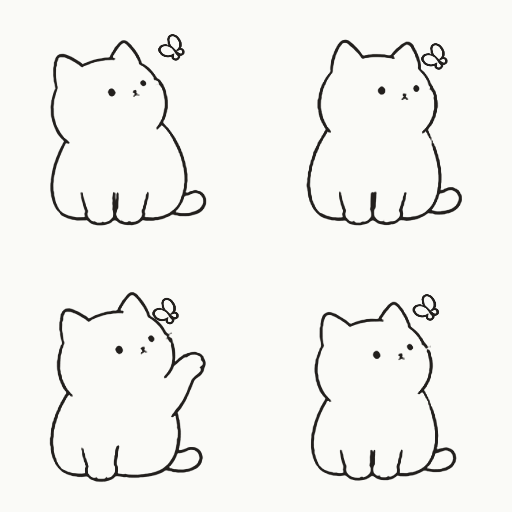
An occasional gesture your cat shows while on its own.
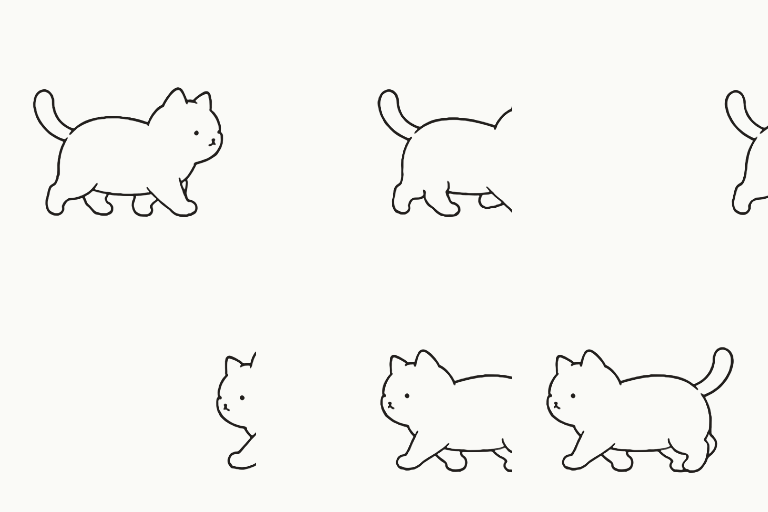
Sometimes your cat wanders outside the sticker. It will come back.
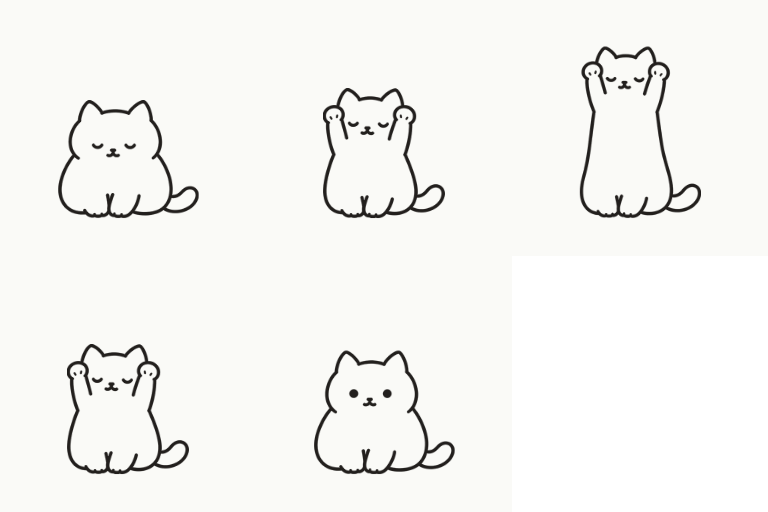
An occasional gesture your cat shows while on its own.
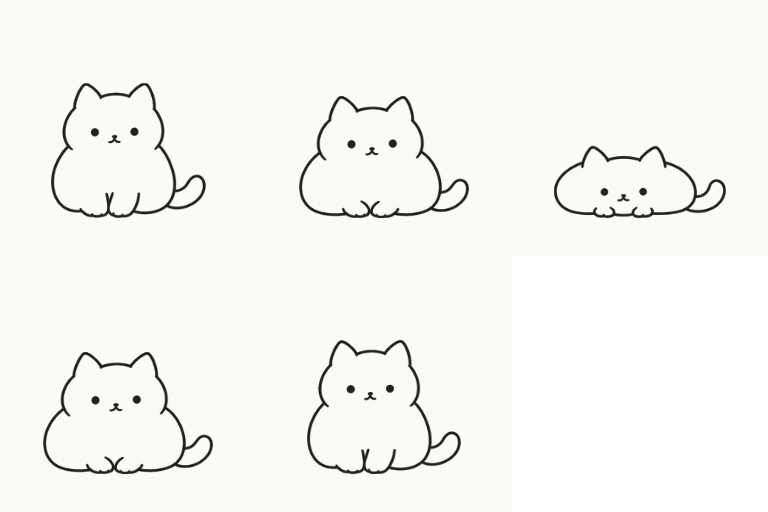
An occasional gesture your cat shows while on its own.
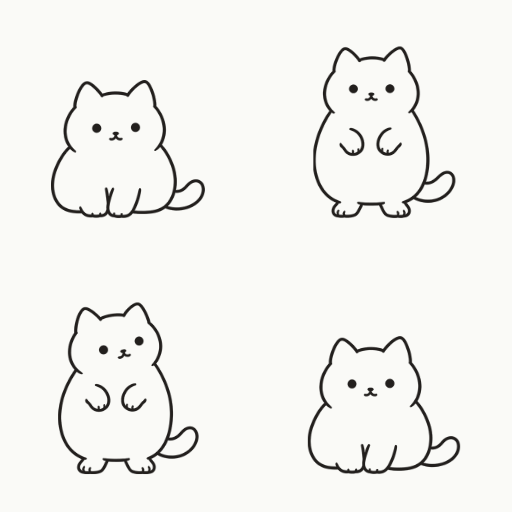
An occasional gesture your cat shows while on its own.
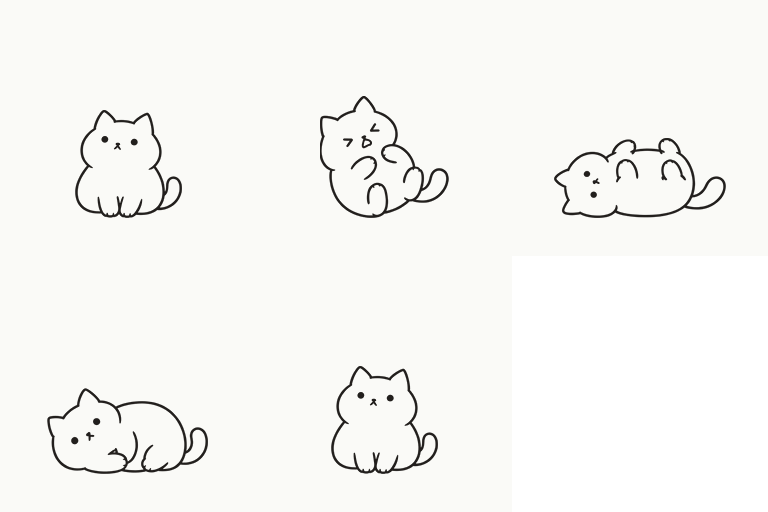
An occasional gesture your cat shows while on its own.
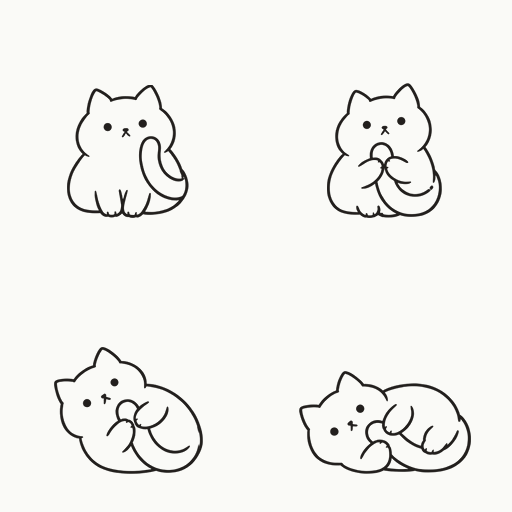
An occasional gesture your cat shows while on its own.
You may occasionally see these reactions while petting your cat.
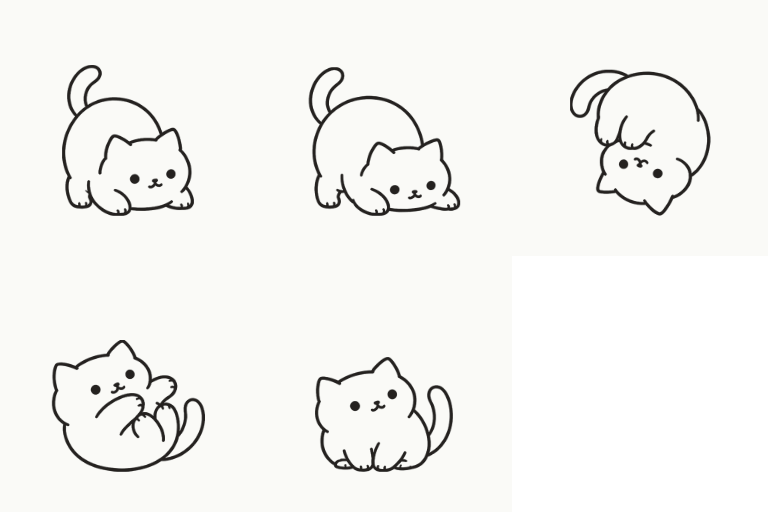
A special reaction that occasionally appears when you pet your cat.
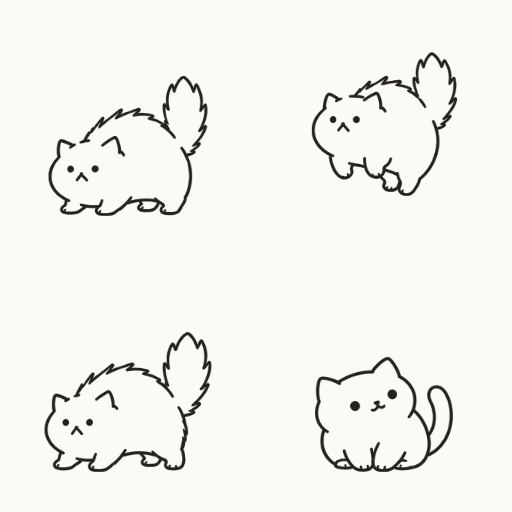
A special reaction that occasionally appears when you pet your cat.
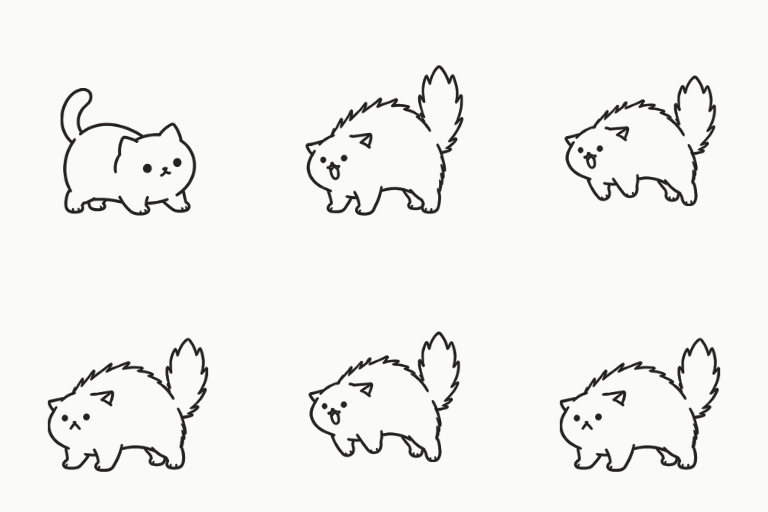
A special reaction that occasionally appears when you pet your cat.
Last updated:
English package versions: NekoLife Free v0.1.15-en.1 ($0); NekoLife v0.5.62-en.1; InuLife and DaiouGusokumushiLife v0.5.61-en.1. Check the Jinxxy product page for current options.
Browse the companions on Jinxxy ↗NekoLife